
Backup protects the local archive and, when enabled, the broader Plembfin instance state. Watch History and full Plembfin backups have separate schedules and retention settings.
Local backups
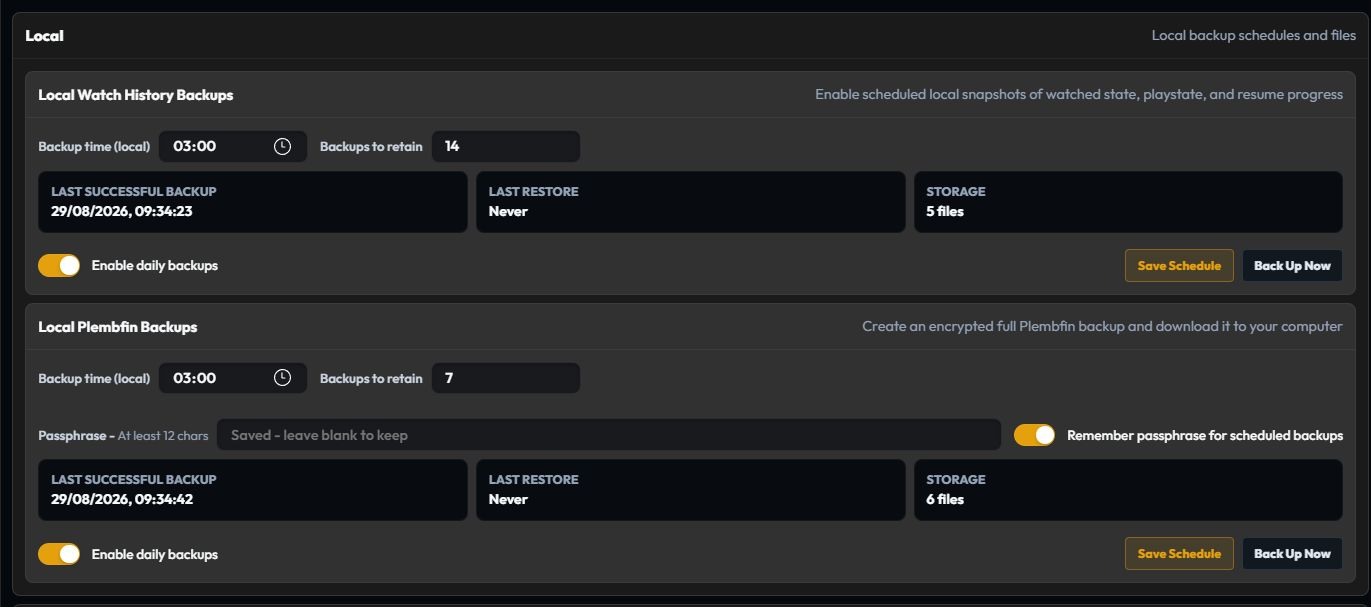
The Local section provides separate Watch History and Plembfin backup options.
For Watch History, set the local backup time, retention count, and daily-backup toggle, then use Save Schedule or Back Up Now.
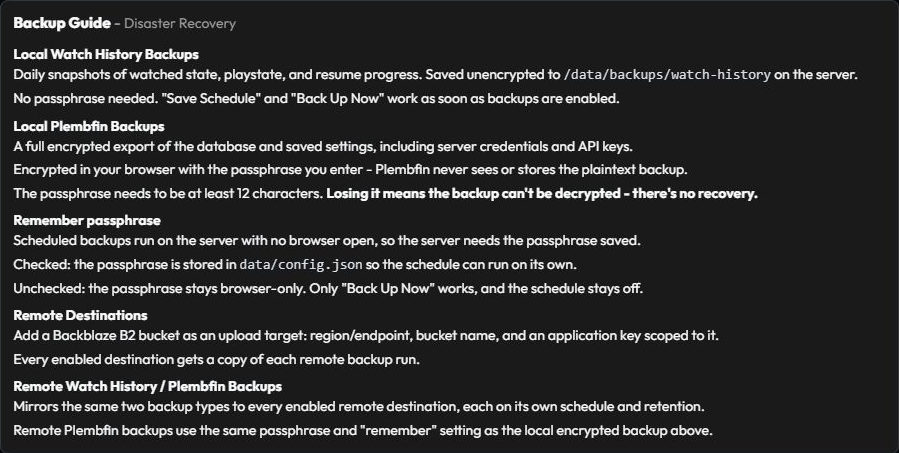
For a full encrypted Plembfin backup, use a passphrase of at least 12 characters. Remember passphrase allows scheduled backups to run without a browser open, but stores the secret in server configuration. Leave it off when the passphrase must stay browser-only; in that mode only Back Up Now is available.
Losing the passphrase means the encrypted backup cannot be decrypted. A full backup can contain saved settings, API keys, and server credentials, so keep files and passphrases protected.
Remote backups
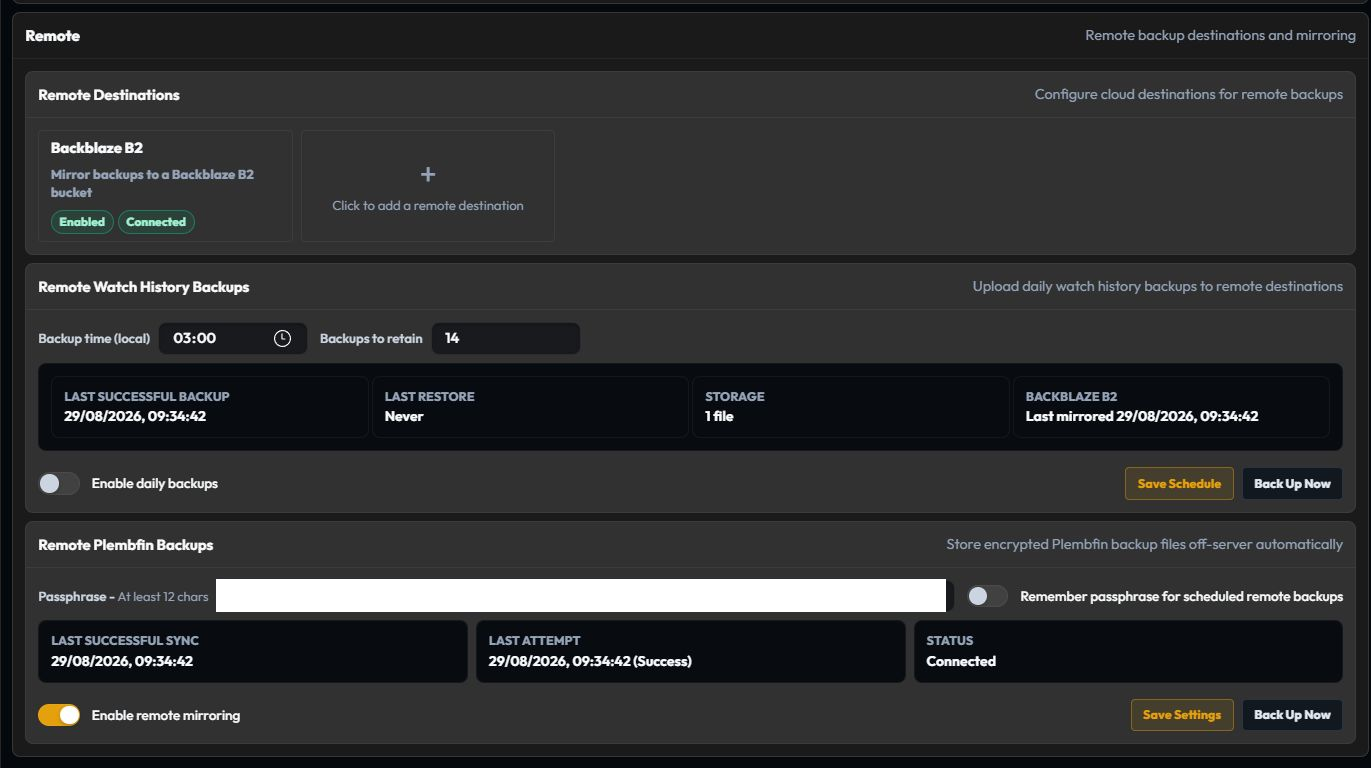
Remote backups mirror the selected backup family to an enabled destination. The destination workflow supports a name, enabled state, region or endpoint, bucket, key ID, optional prefix, and application key.
To add or update one:
- Open Remote and add a destination or open an existing card.
- Enter the destination fields and enable it.
- Save, then use Test.
- Run a backup and verify the status and remote object.
Deleting a destination record does not delete files already stored in the remote bucket. Treat application keys as secrets and rotate them at the provider when necessary.