
Use Sync Activity when you need to answer “what happened?” rather than only “is the connection healthy?”.
It groups activity by movie or show while preserving every event, source, destination, result, and the reason behind a skipped or failed delivery.
Read an activity row
An activity row can identify:
- the media item and requested action;
- the source platform and time;
- each destination selected for delivery;
- success, skipped, partial, or failed status;
- the reason a destination was skipped or failed; and
- a retry or log action when one is available.
The list header shows how many media groups are loaded and how many have issues on the current page. Click the failed-count summary pill to show only groups with failed results; click it again to restore the full page. Search and filtering do not delete or hide the underlying history.
Open a group to load its current activity inline. The expanded group shows the newest current result for each movie or episode, resume checkpoints, and target results, newest first, with Load older events for the full audit history. Expected missing-library and unconfigured-target skips remain separate from real failures. The title button opens the matching local or provider detail route without collapsing the group.
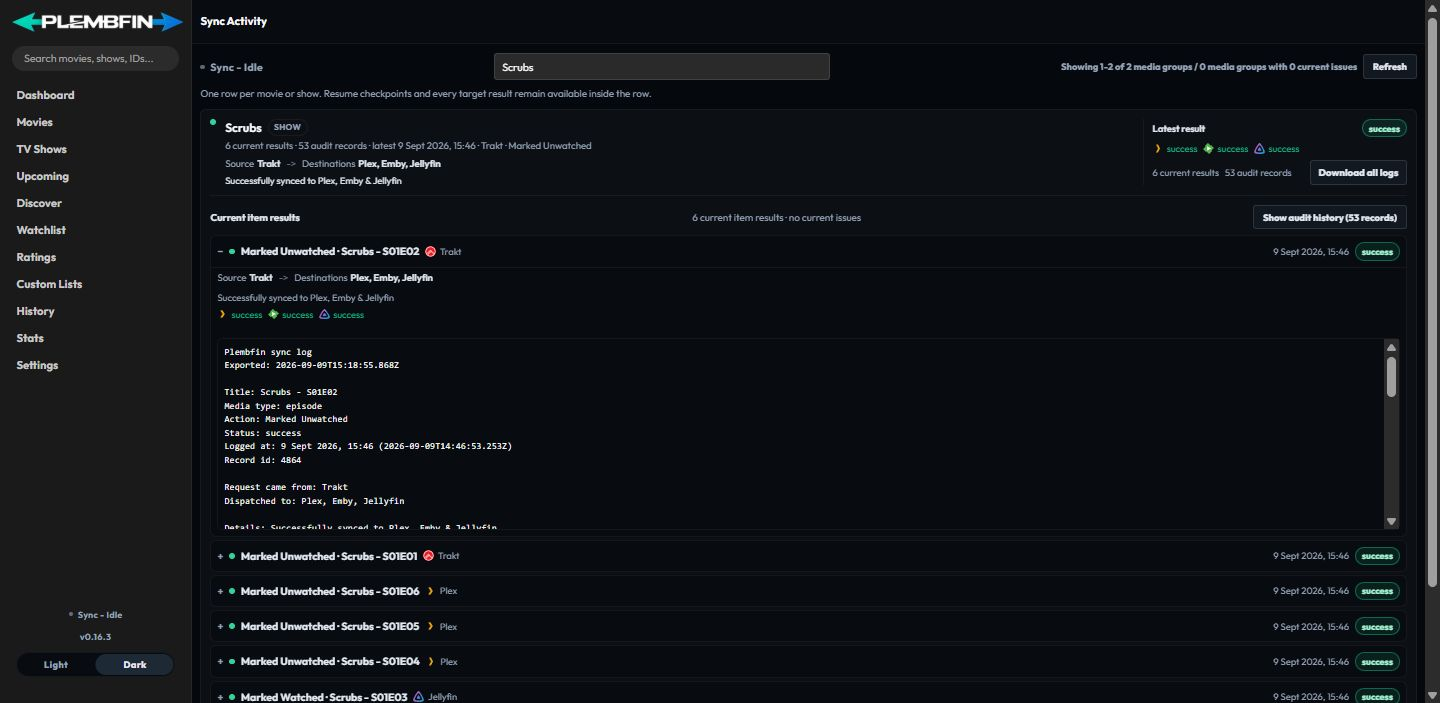
The sidebar Sync indicator is only a summary.
Use Sync Activity and Settings → Logs for the detailed reason.
A skipped result usually means there was no matching item, the destination was not configured, or the item was outside the operation scope.
Check Settings → Sync → Sync Issues and Match Report.
A failed result means the request or provider operation did not complete. Retry and dismiss actions keep their public failure response generic; use the current result and Settings → Logs for deeper diagnostics.
Check Settings → Connections, Settings → Metadata, and Settings → Logs.
Retry one result
Use a row-level retry after correcting the specific cause:
- Open Sync Activity from the sidebar Sync indicator.
- Find the newest row for the title.
- Expand or open the row and read the destination reason.
- Correct the match, connection, or provider setting named by that reason.
- Choose Retry failed or the available item retry. For a Trakt
not_foundresult, use the show-match repair described below. - Confirm that the result updates in place and shows success or a useful reason.
Retrying is safe because duplicate delivery is protected by the event and media identity.
Do not use a full replay to fix one wrong title when a targeted retry is available.
The retry preserves the previous outcome in the raw debug data. Targets that are now unconfigured are reported as skipped, and targets that were not retried keep their prior result, so the resolved group can leave the failed count without creating a stale duplicate row.
Retry all failed
Retry all failed retries failed or skipped items across the full history, not only the visible page. Plembfin discovers the real total before confirming and runs the retry as a background job that survives navigation, reloads, and a closed tab.
It runs as a background job, so it can continue while the tab is closed or you navigate away.
Use it only after fixing the shared cause, such as a server being back online or a provider key being corrected.
When the job finishes, read the resulting statuses in Sync Activity.
Items with no configured destination can remain skipped by design.
Restore attention and match repair
An authoritative watch-history restore can leave a grouped Sync - Attention Needed panel when a media-server projection still needs repair. Expand a show to review its episodes, retry or skip a batch, or choose a target-specific retry. If the saved identity is no longer enough for a direct retry, Fix match opens the normal title-matching flow; rerunning the restore uses the corrected identity. The restore fence releases after every outstanding item is repaired or deliberately skipped.
Trakt show-match repair
When an episode’s Trakt result is not_found, the saved show identity may no longer resolve in
Trakt. Open the affected show group and choose Fix show match & retry all. Plembfin repairs
the show identity, rematches every stored episode, warms the corrected TV metadata and posters,
and retries the current failed entries. The individual Fix show match action is available
when only one result needs attention.
If Trakt does not contain the show, choose Dismiss Trakt errors for the group or Dismiss Trakt error for one item. This intentionally skips only the Trakt target; it does not delete local watch history or suppress delivery to other configured destinations. Older audit events are preserved, while retry actions operate only on the newest unresolved targets.
Settings sync tools
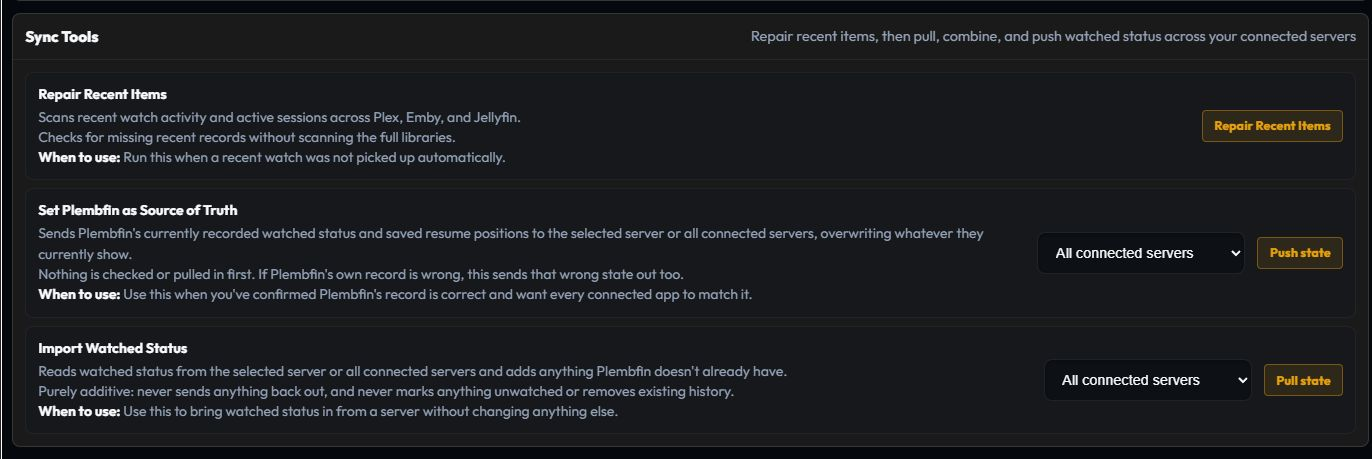
The detailed controls live under Settings → Sync.
See Settings for every field, but remember that the actions have different scopes:
Repair Recent Items
Revisits recent watch records and attempts to repair incomplete delivery or matching state.
Use this for a small recent problem before starting a library-wide operation.
Full Sync Watchstates
Replays canonical watched and resume state to configured media servers in two phases.
It takes a fixed snapshot, reports progress and throughput, and uses the shared sync lock so it cannot overlap Force Sync or backup restore.
Stop controls cancel future batches.
Completed batches remain applied.
Force Sync
Force Sync has two deliberate directions:
- Set Plembfin as Source of Truth replays local watched and resume state to one selected destination or all destinations, overwriting the selected destination’s state.
- Import Watched Status reads watched state from one selected media server or all configured servers and adds missing records locally. It does not send those changes back out or remove local state.
Before confirming a Force Sync, check the direction and destination scope.
Keep the activity panel open and review the per-destination result after completion.
Sync Issues and Match Report
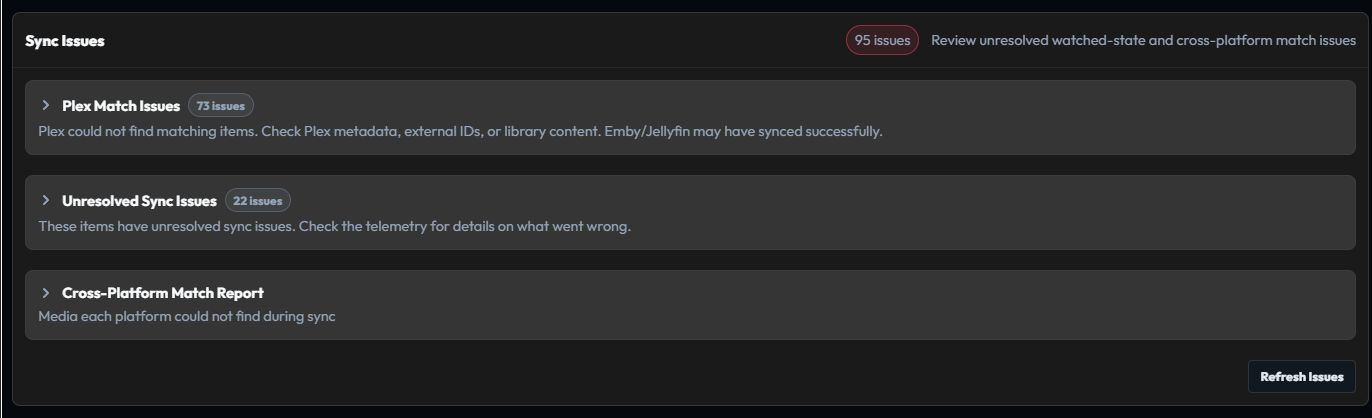
Open Settings → Sync → Sync Issues for unresolved jobs and the Cross-Platform Match Report. Expected missing-library items remain skips and are not treated as broken identity matches.
The report separates two different cases:
- no reliable IMDb, TMDB, or TVDB identity exists; or
- the identity is known but the destination library does not contain a matching copy.
Use the report like this:
- Select Rescan to retry the listed items and rebuild their results.
- Review the rows that remain.
- Select Fix All Matches when identity choices are required.
- Complete each title-level Fix Match.
- Rerun the scan and inspect Sync Activity.
An identified-but-missing destination is a library difference, not necessarily a broken archive.
Adding the title to that server allows a later catch-up to apply the local state.
Sync History and Logs


Sync History shows recent synchronization and maintenance operations, including repairs, imports, Force Sync, and restore work.
The Settings → Logs page contains the server and browser diagnostic stream. Each expanded activity group also provides Download all logs, which saves the group’s events as one plain-text log for local review. Redact private values before sharing any exported evidence.
Preserve the relevant log before clearing it.
Redact webhook URLs, credentials, private server names, and user-identifying data before sharing evidence.