
The TV Shows media page is the detail page for one selected series. This guide is about the page reached from a show card, not the TV Shows library’s search, filters, sorting, or view controls.
For example, a direct TV show detail route looks like:
/tvshow/tmdb/108978-reacher#season4
Open a TV show media page
Select a show card in TV Shows to open its media page. The page keeps the series context, season list, episode progress, actions, and provider content together.
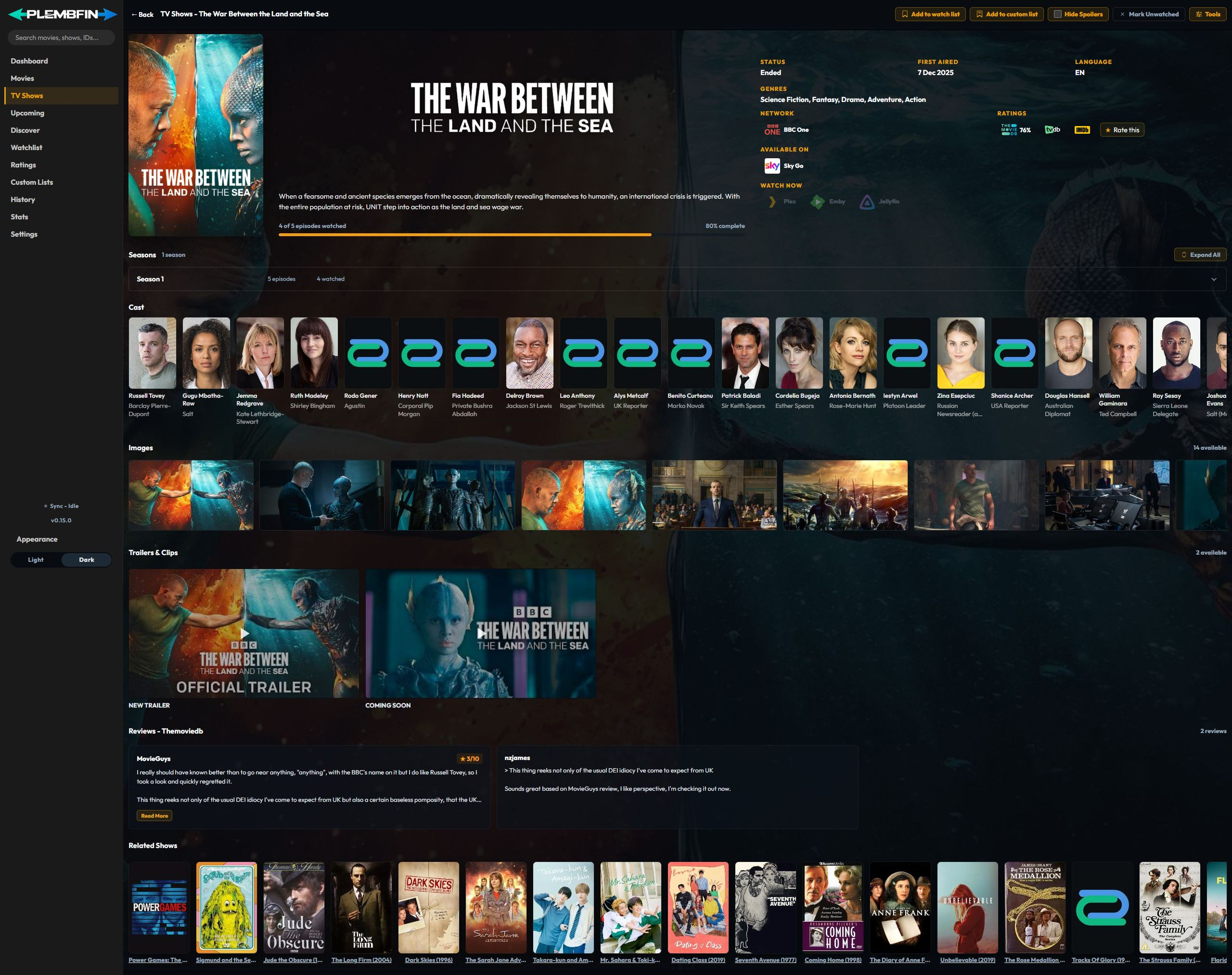
Show header and facts
The header can include:
- the poster, backdrop, logo, and show title;
- the synopsis and provider ratings;
- sync status and media-server availability;
- provider identifiers and links back to Plex, Emby, or Jellyfin; and
- a Seerr request control when Seerr is connected.
Provider data is shown when it is available. A missing provider result does not remove the local series or episode records.
Seasons and episodes
The Seasons section lists each season with its episode count, watched count, availability, and next-airing context. Episode details load as a season is expanded, so a large show can render its header and season summary without waiting for every episode.
Season navigation and artwork load incrementally. The page reserves image space and uses a shimmer while artwork arrives, so the show header and controls remain usable on a cold load.
- Select a season row to expand or collapse its episodes.
- Use Expand All or Collapse All to change the season accordion state.
- Episode rows show episode identity, air date, watched state, and available actions once that season has loaded.
Episode rows prefer the real episode name stored on the watch record. Verified metadata with no title remains No title provided.
If the actual episode name is missing, run Settings → Tools → Database Repairs → Restore Missing Episode Names. The repair fills the name when provider metadata supplies one.
The page can also preserve a season or episode in the URL when opening a direct detail route, so a shared link can return to the relevant part of the show.
Episode cards and notifications resolve through the explicit parent-show identity. An episode
provider ID is not substituted for the series ID in a /tvshow/... route, which keeps deep
links on the correct show.
Progress and show actions
The header summarizes watched episodes against the known episode total. The action row contains the controls appropriate to the series state.
Personal list actions

Use Add to watch list or Add to custom list for local personal choices. Their labels change to Remove from watch list and In custom list when the show is already saved. Read the dedicated Watchlist and Custom Lists guides for those workflows. Episode ratings are covered in Ratings.
Watch-state actions
Use Mark Watched or Mark Unwatched for the show’s episode set. These actions change canonical watch state and follow the normal sync path. A season-level Mark season watched action updates only episodes that are still unwatched and eligible; watched episodes remain unchanged. When the season is already fully watched, the control becomes Resync season and replays the existing state without creating a new watch event. Use Sync Activity to confirm destination results.
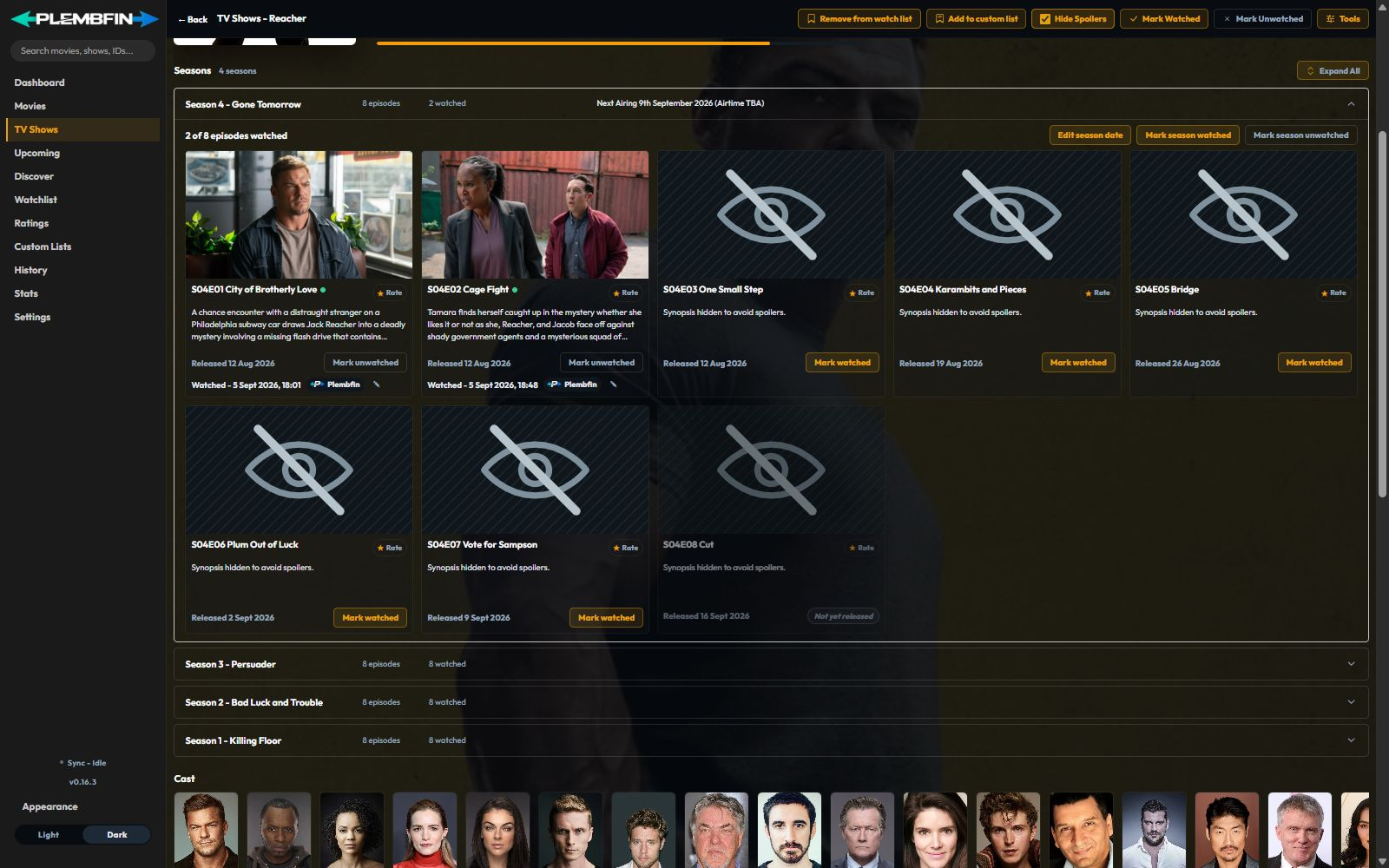
Hide Spoilers Enabled
Hide Spoilers Disabled
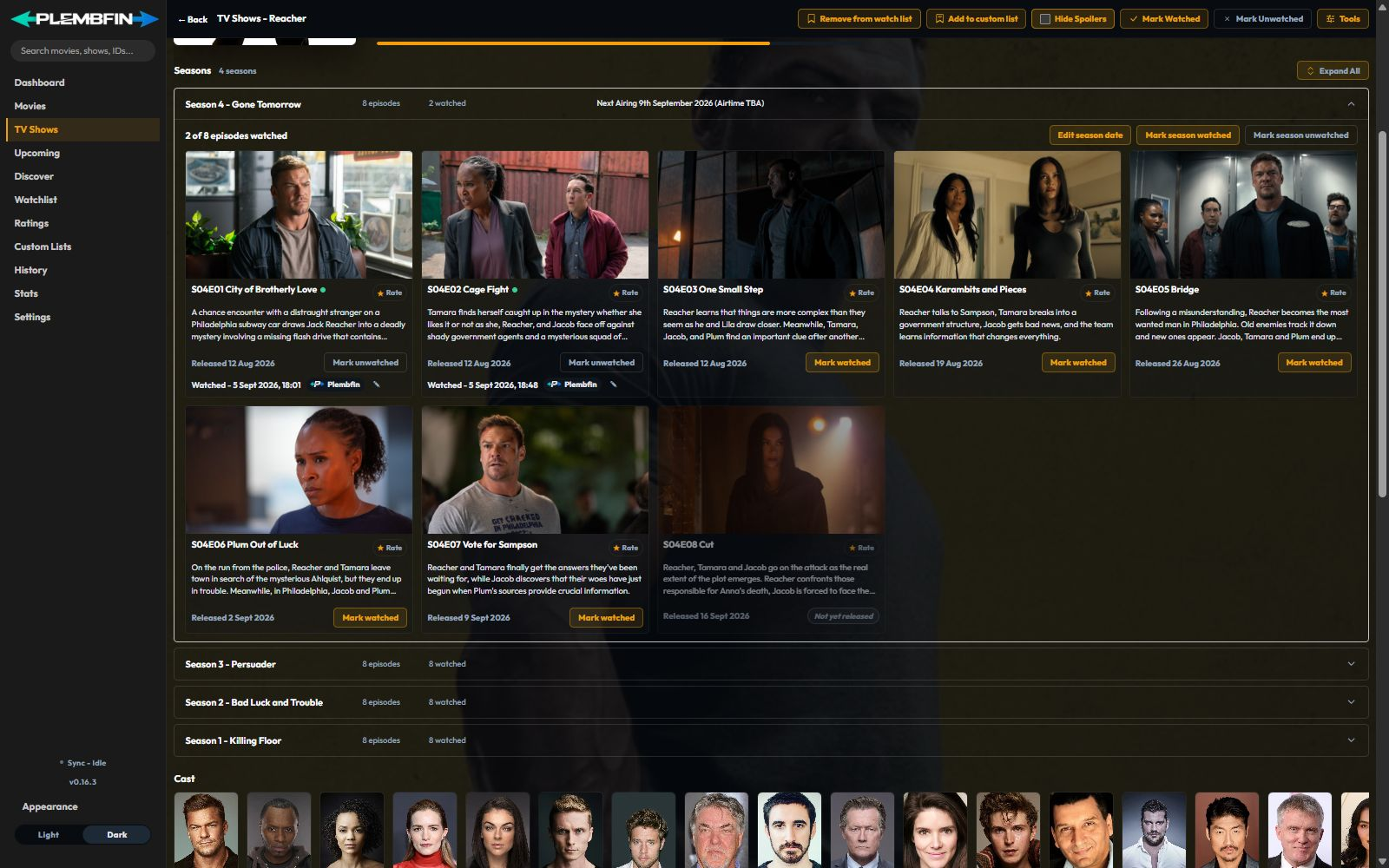
Hide Spoilers changes presentation for unwatched episodes only. It does not change metadata, watch state, progress, or sync.
Tools
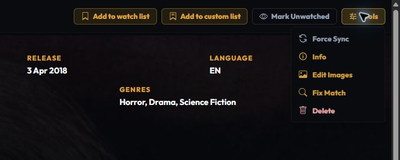
Use the title-scoped Tools menu for maintenance, sync evidence, artwork, identity corrections, and TV record management. The sections below explain each action and when to use it.
Force Sync
Choose Force Sync when one show needs a targeted watched-state or resume-state replay. The menu is title-scoped, so it does not replace the broader tools in Settings → Sync.
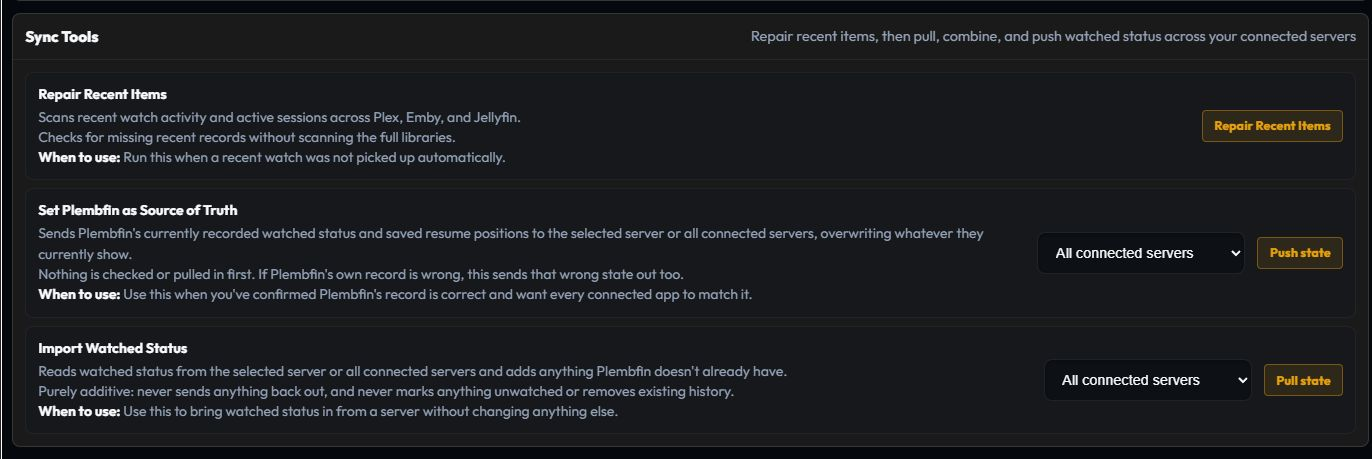
For a single show or episode:
- Open Tools → Force Sync on the detail page.
- Select the direction and destination shown by the dialog. Push sends Plembfin’s recorded watched or resume state out; pull imports the selected title’s state from a connected server.
- Review the preview before confirming, especially when pushing because remote state can be overwritten.
- Check the result in Sync Activity.
Use Repair Recent Items, Set Plembfin as Source of Truth, or Import Watched Status under Settings → Sync → Sync tools for wider repair and source-of-truth operations. The watched threshold and resume minimum are controlled in Sync Tuning.
Info
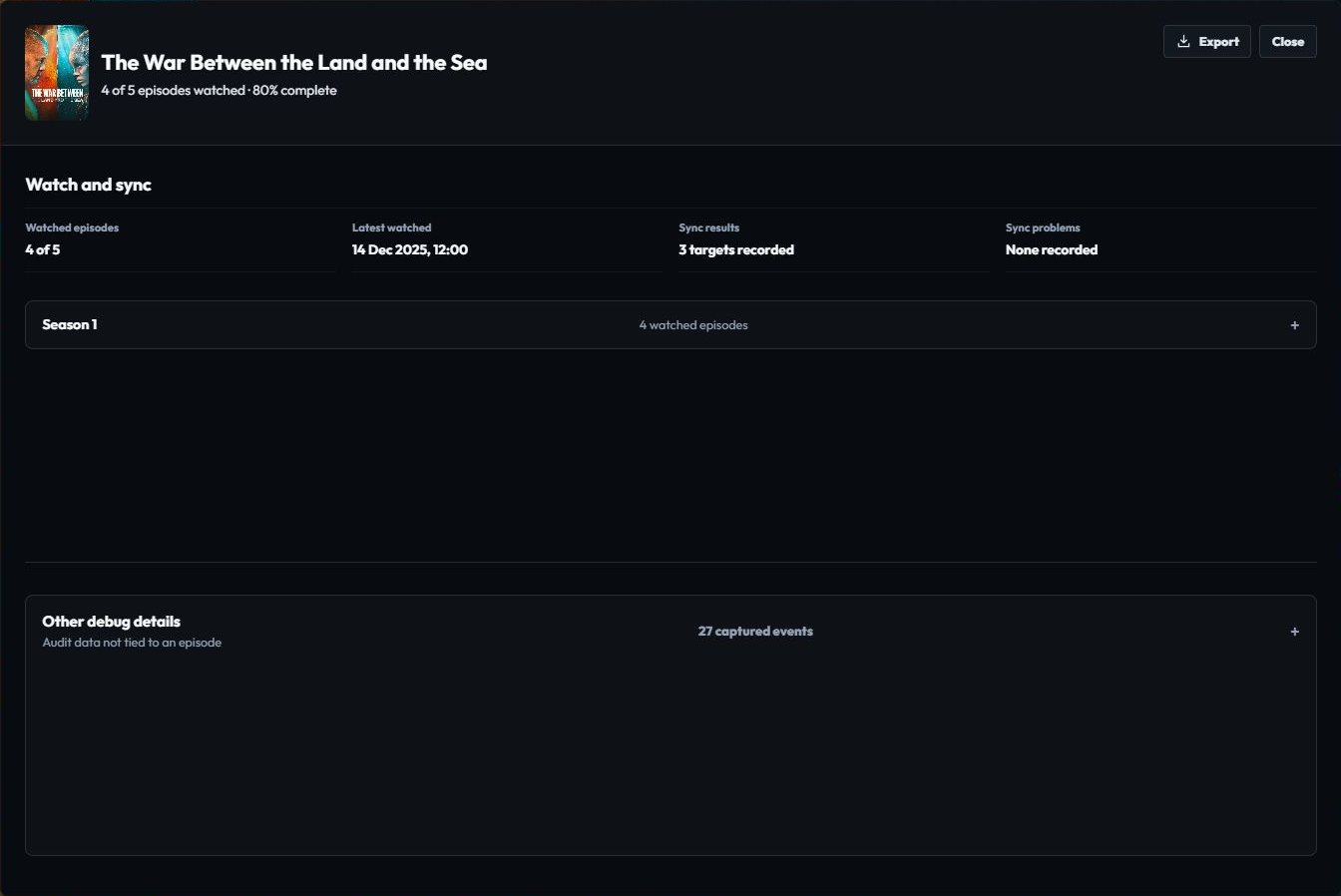
Choose Info to inspect the show’s watch status, latest watched record, destination results, and available audit events. Use Export when you need to preserve the evidence. Info does not change seasons, episodes, personal lists, or the provider match.
Edit Images
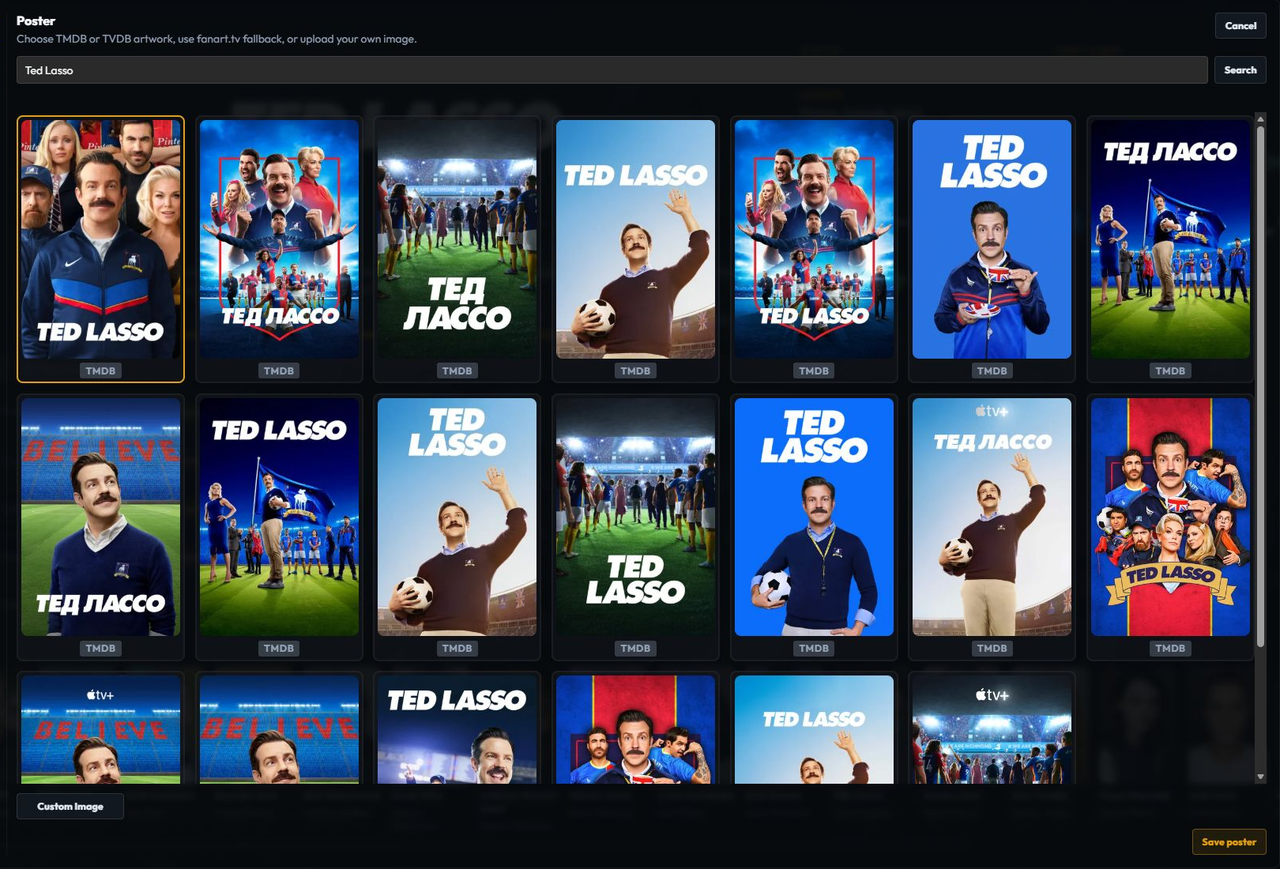
Choose Edit Images when the series match is correct but its artwork is not. Pick the artwork type, choose a provider result or custom image, and save. Use Fix Match when the series itself is wrong.
Fix Match
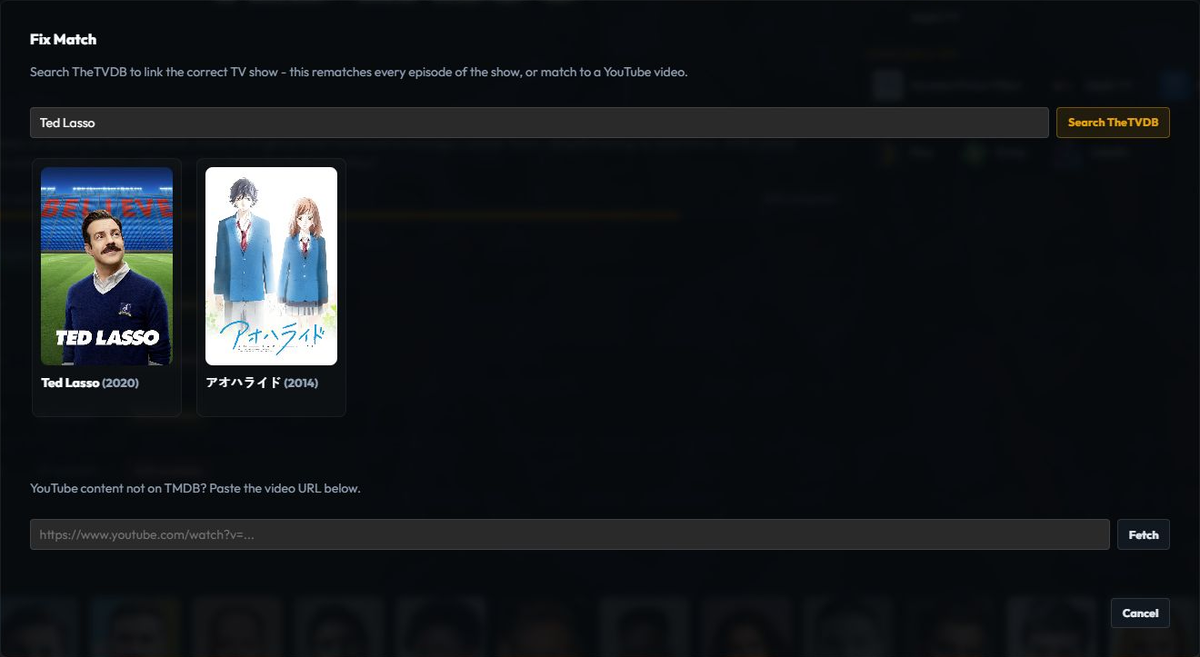
Choose Fix Match when the show is attached to the wrong series. Compare title, year, network, seasons, and provider details before confirming. A TV match applies to the series and its episode records.
Merge
Choose Merge only when two local series records represent the same show. Compare the series identity, episode totals, and preview, make a backup, and confirm only when the records are true duplicates. Merge changes local record structure and is harder to reverse than a metadata refresh.
Delete
Choose Delete only when the local tracked show and its recorded history should be removed. Review the confirmation scope and keep a verified backup first. Deleting the record does not remove files from Plex, Emby, or Jellyfin.
Season rows can also offer Edit season date, Mark season watched, Resync season, and season-level unwatched actions. Individual episode rows provide their own watched, unwatched, and watch-date actions. If an identity is repaired, corrected TV metadata and posters are warmed before the refreshed show details return.
TV show detail sections
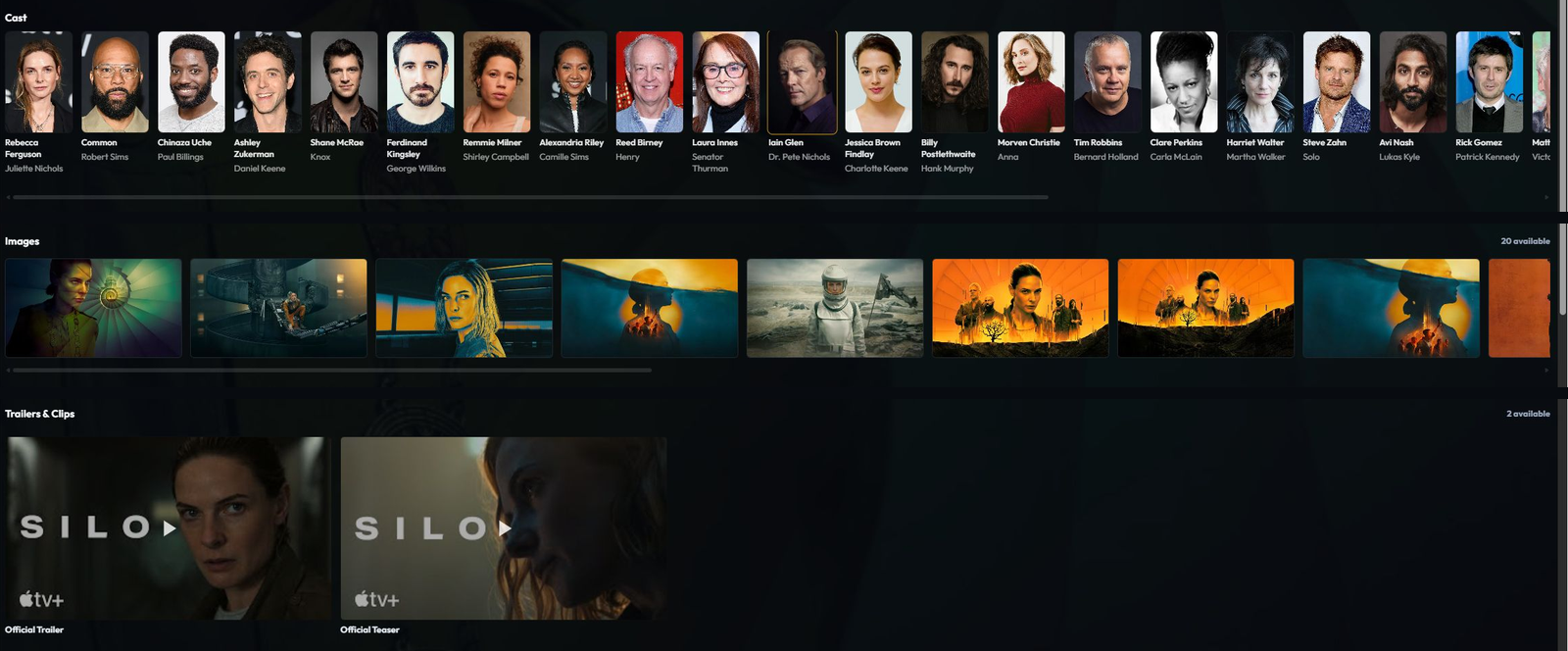
When provider data is available, the page can render:
Cast

The Cast section lists credited people and their roles. Select a person to inspect their biography without changing the show record.
Images

The Images gallery opens scene artwork in a lightbox. It is separate from the artwork choices under Edit Images.
Trailers & Clips

Select a trailer or clip to play it in the media lightbox. A missing video is a provider-data condition, not a watched-state change.
Reviews
The Reviews section displays provider reviews and scores when that provider is enabled. Review content is provider-supplied and remains separate from your private Ratings.
Related Shows

The Related Shows section links to provider-related series. It does not add those shows to the local library automatically.
These sections belong to the selected series. They are not additional library pages.
Appearance
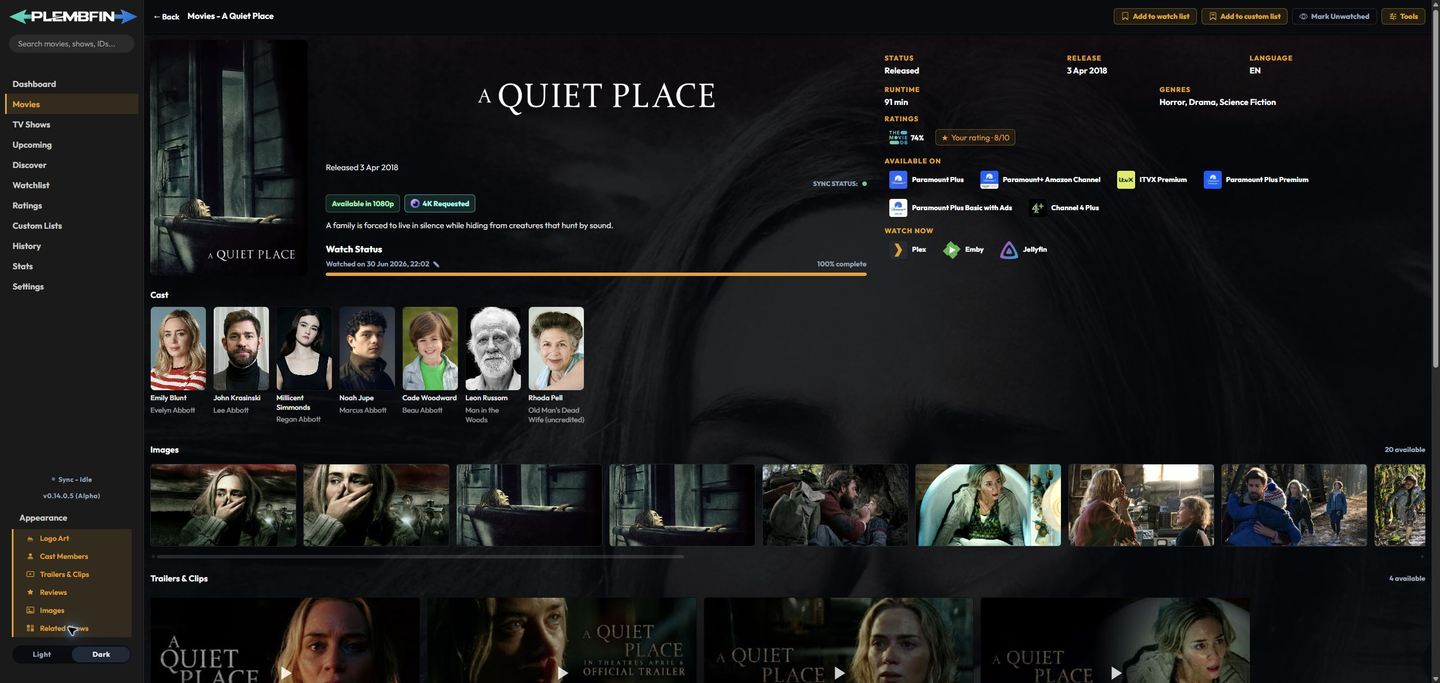
Open Appearance in the sidebar footer while this TV show media page is active. The TV-specific switches control which optional sections are rendered:
- Logo Art
- Cast Members
- Trailers & Clips
- Reviews
- Images
- Related Shows
Each switch changes presentation only and is saved as an appearance preference. The Dashboard’s history remains Card View by default; its layout is not controlled here.
For the shared behavior of watch dates, matching, artwork, and sync, see Media details and actions.