
Plembfin is designed to run on hardware you control.
Treat the local data volume, admin credentials, provider tokens, and webhook secret as valuable operational data.

Backups
Plembfin supports two local backup families:
- Watch-history backups include history, playstate, and resume markers.
- Full Plembfin backups are encrypted and include settings, keys, credentials, history, Watchlist, Ratings, Custom Lists, and other instance state.
Each has its own schedule, retention, and Back Up Now action.
The remote backup option can mirror either type to Backblaze B2 on its own schedule.
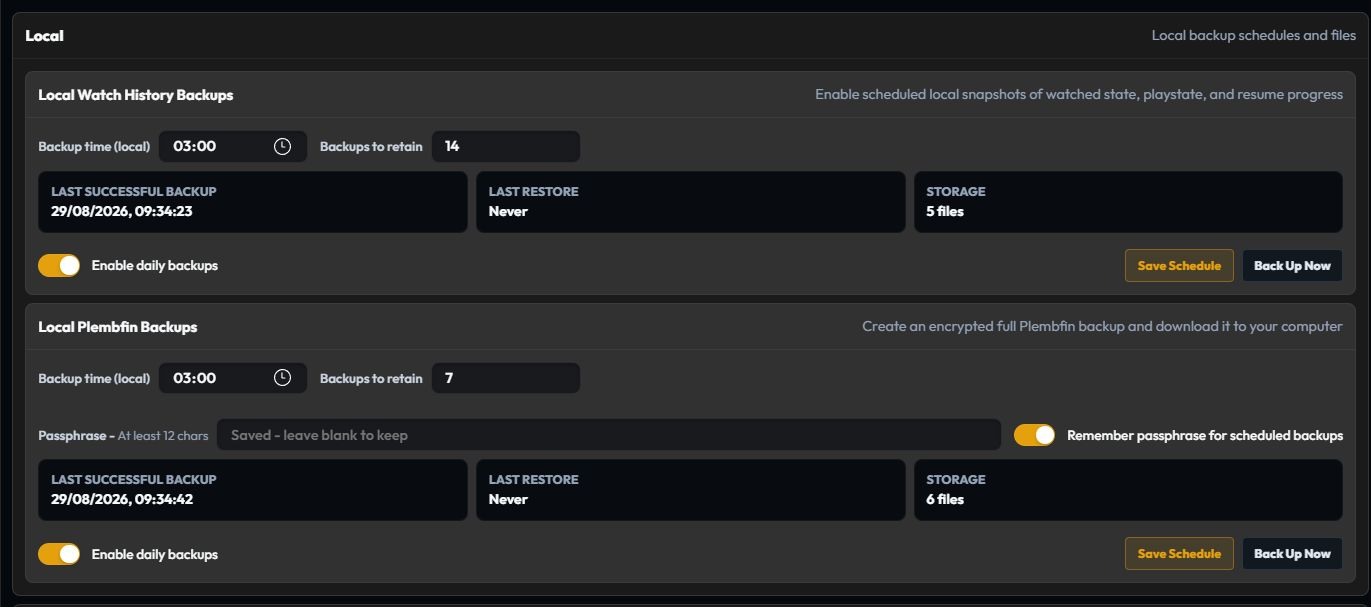
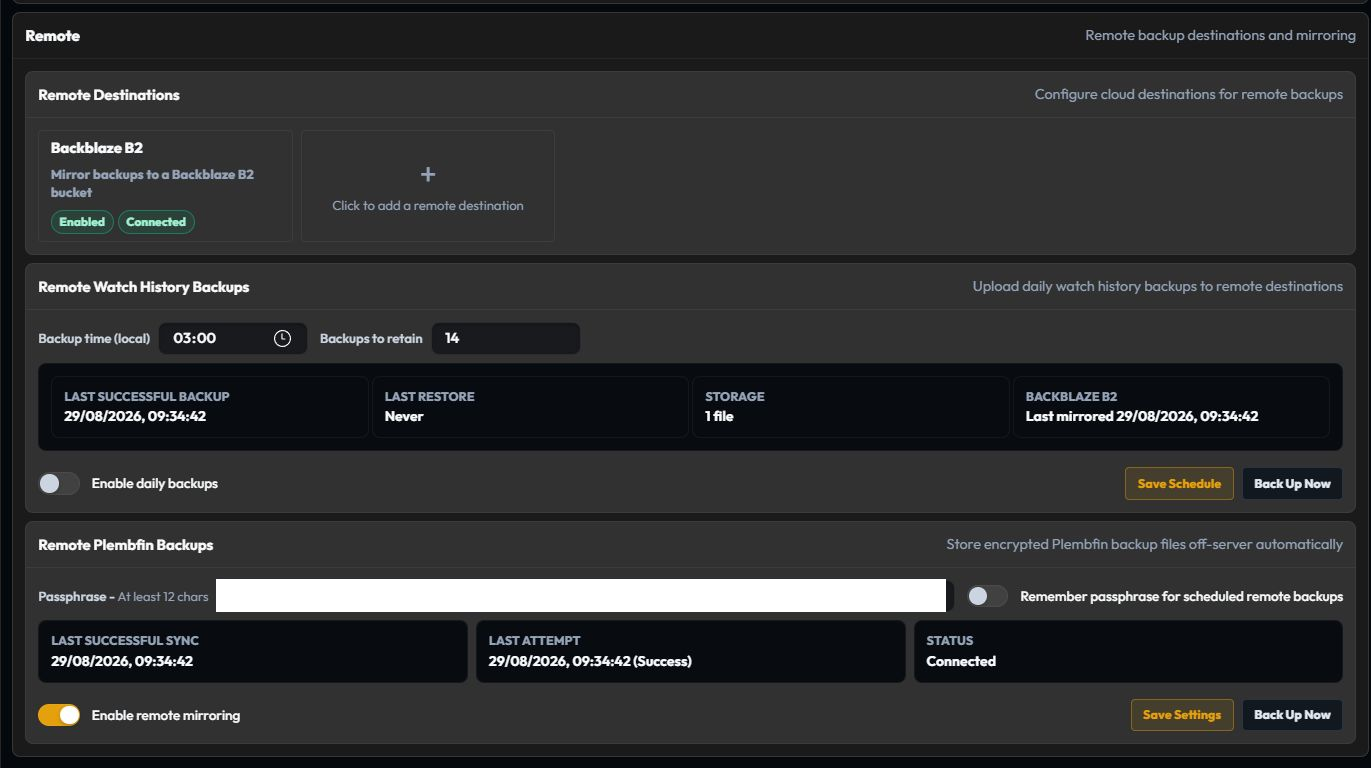
For scheduled encrypted backups, provide a passphrase of at least 12 characters and enable Remember the passphrase for scheduled backups.
A scheduled job cannot stop to ask a human for a passphrase.
Store the passphrase separately from the backup file.
Full Plembfin backup/export includes the canonical Watchlist and its non-secret Plex sync state. Restoring it invalidates remote observations and requires another safe-union snapshot before delivery resumes. Watch-history-only backups do not include Watchlist or personal rating data.
Restore safely
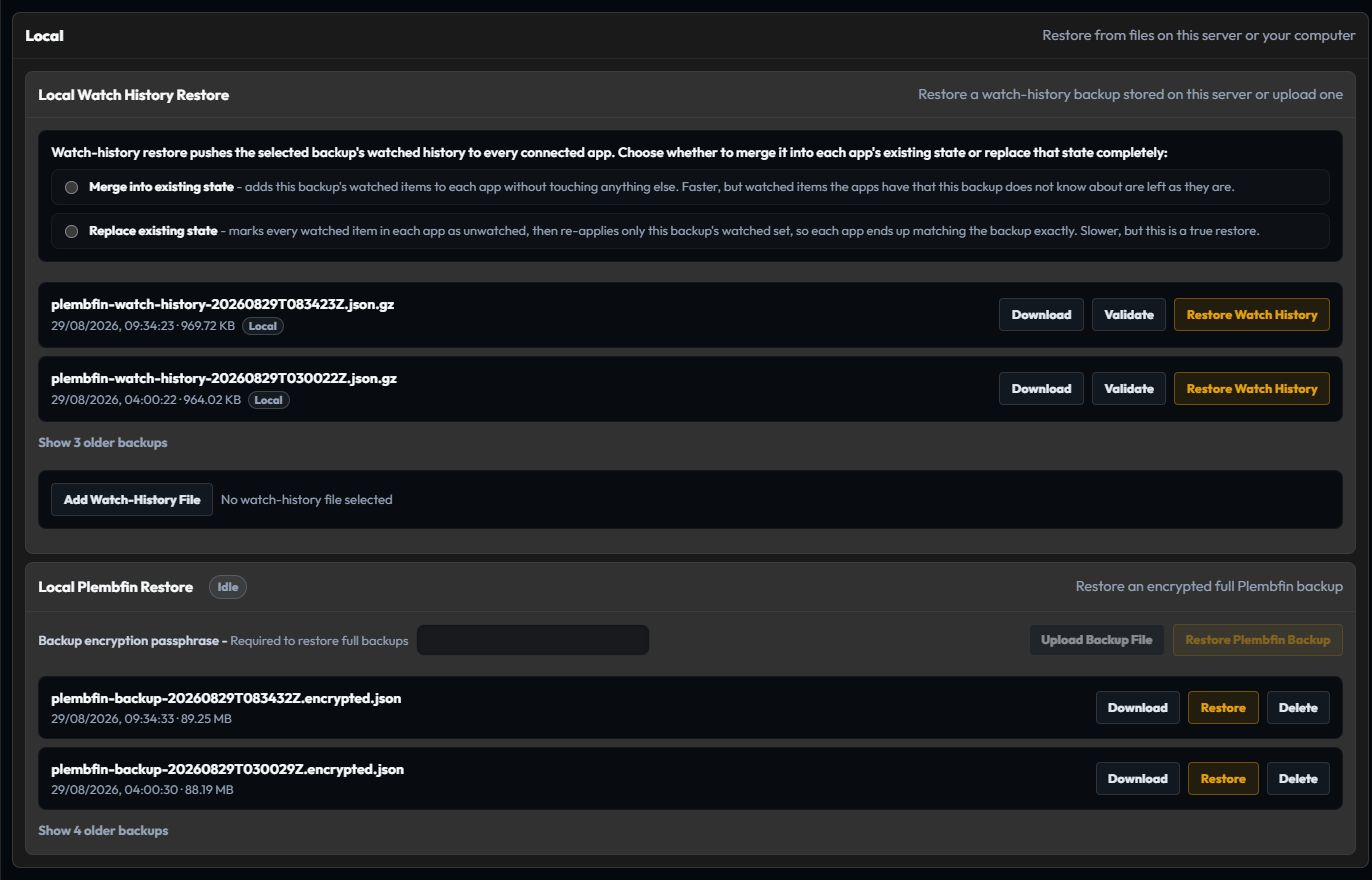
Before restoring:
- Check whether the file is a watch-history backup or a full encrypted backup.
- Make a fresh backup of the current instance.
- Choose Merge or Replace deliberately.
- Review the preview and confirm the scope.
- Keep the original backup file until the result has been verified.
- Open Sync Activity and check a few known titles on each connected server.
A restore changes local state and may queue follow-up sync work.
If a server was offline, let it reconnect before deciding that the archive is wrong.
If a bulk operation produced unexpected unwatches, stop making further changes and identify the last good backup first.
Import history
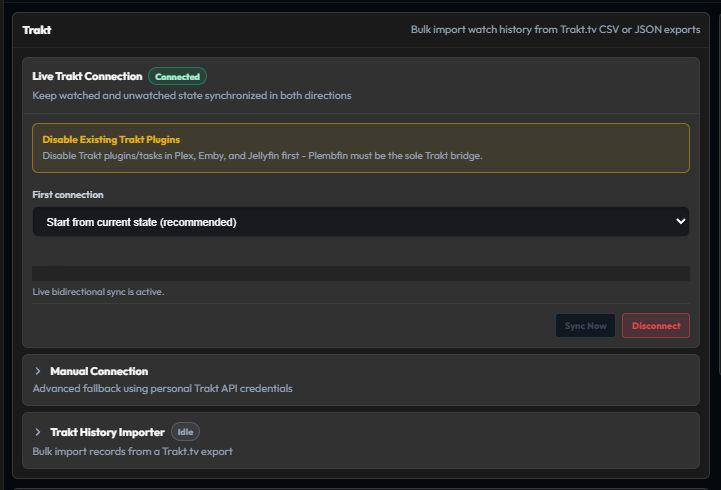
Trakt exports can be uploaded from Settings → Connections.
Live Trakt sync can then remain connected for ongoing changes.
The Plex history export script is useful when bootstrapping a fresh deployment or recovering years of history.
Run a dry run before a write pass.
For a newly connected or rebuilt library, use import followed by a deliberate full sync when you want the current Plembfin archive replayed to that server.
Do not use a full sync as the first response to an unexplained mismatch.
Inspect the destination result first.
Routine maintenance
Once a week or after an upgrade:
- confirm the
/datavolume is mounted and writable; - check the scheduled backup result and retention;
- open the dashboard and confirm recent activity is still visible;
- review failed or partial rows in Sync Activity;
- check provider keys and rate-limit errors if artwork is missing; and
- keep one known-good restore point before changing release channels.
Security basics
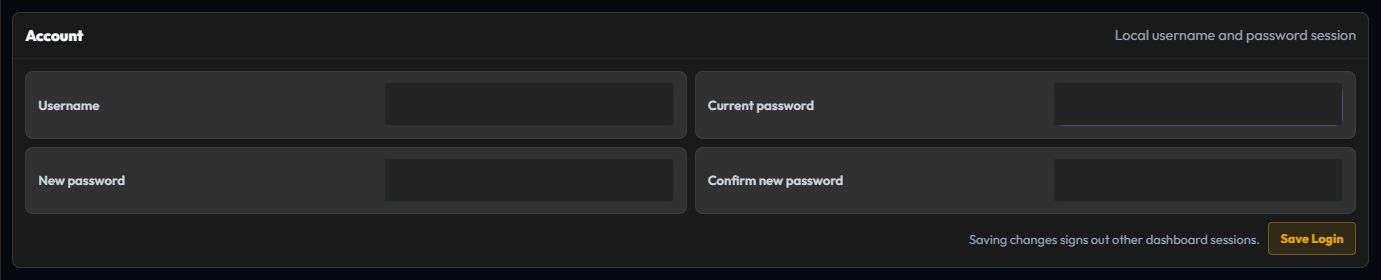
- Use a unique administrator password and keep it out of source control.
- Keep
data/on persistent storage with permissions appropriate to the host. - Put remotely reachable instances behind HTTPS or a VPN/reverse proxy.
- Set
COOKIE_SECURE=truewhen serving through HTTPS. - Treat API keys, webhook secrets, Trakt tokens, and the optional credential-vault key as secrets. Rotate them when exposure is suspected.
- Keep the webhook URL private because the token may be in its query string.
- Remove private-list titles and runtime/build details before sharing screenshots or logs.
Plembfin applies password hashing, signed sessions, rate limits, security headers, and authenticated routes.
These controls reduce risk.
They do not replace host, network, or media-server security.
Updates and release channels
The recommended Docker tag is latest, which follows tested releases on main.
alpha is for early testers, and develop is the least-tested rolling channel for
contributors.
Back up before changing release channels or upgrading the container.
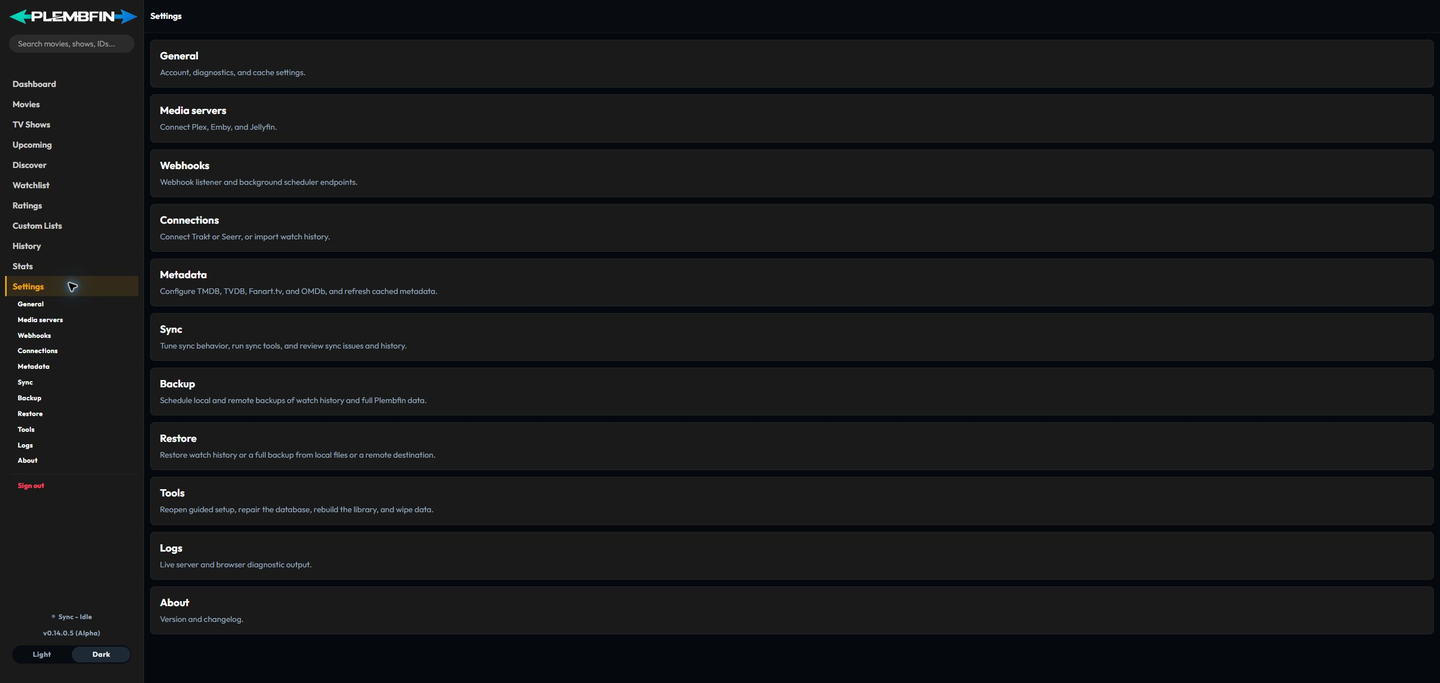
After an update, check the app version in Settings → About, open the dashboard, and review Sync Activity for unexpected failures.
PWA and local operation
Plembfin is installable as a Progressive Web App on supported desktop and mobile browsers.
The browser is a client to your self-hosted instance.
The scheduler and provider requests still run on the Plembfin host.