
Discover is Plembfin’s external-media browsing page. It brings current TMDB feeds into the same poster-card language as the local libraries, so you can explore without first adding a title to a media server.
Discovery rails
The default Movies & TV view can show:
- Trending movies;
- Trending TV shows;
- Now playing movies; and
- Airing today TV shows.
The exact titles change as TMDB updates its feeds. The page reports the number of results in each rail and uses horizontal scrolling for the poster-card rows.
Discover is a feed, not a second local library. A title can appear here before Plembfin has recorded a watch or before it exists on one of your connected media servers.
Type and genre filters
Use Type to switch between:
- Movies & TV for the combined feed;
- Movies for movie rails and movie genres; and
- TV shows for TV rails and TV genres.
The Genre selector changes with the chosen type. Select All genres to return to the default feeds, or choose a genre to request filtered movie or TV rails. Refresh forces a new feed request when you want to recheck the current snapshot.
Discover uses a short-lived local cache so a previously loaded feed can paint quickly while the server revalidates it. A current TMDB API key is required. If the key is missing or TMDB is temporarily unavailable, the page presents an actionable Settings → Metadata link or a retry button instead of silently showing stale empty rails.
Open and save a title
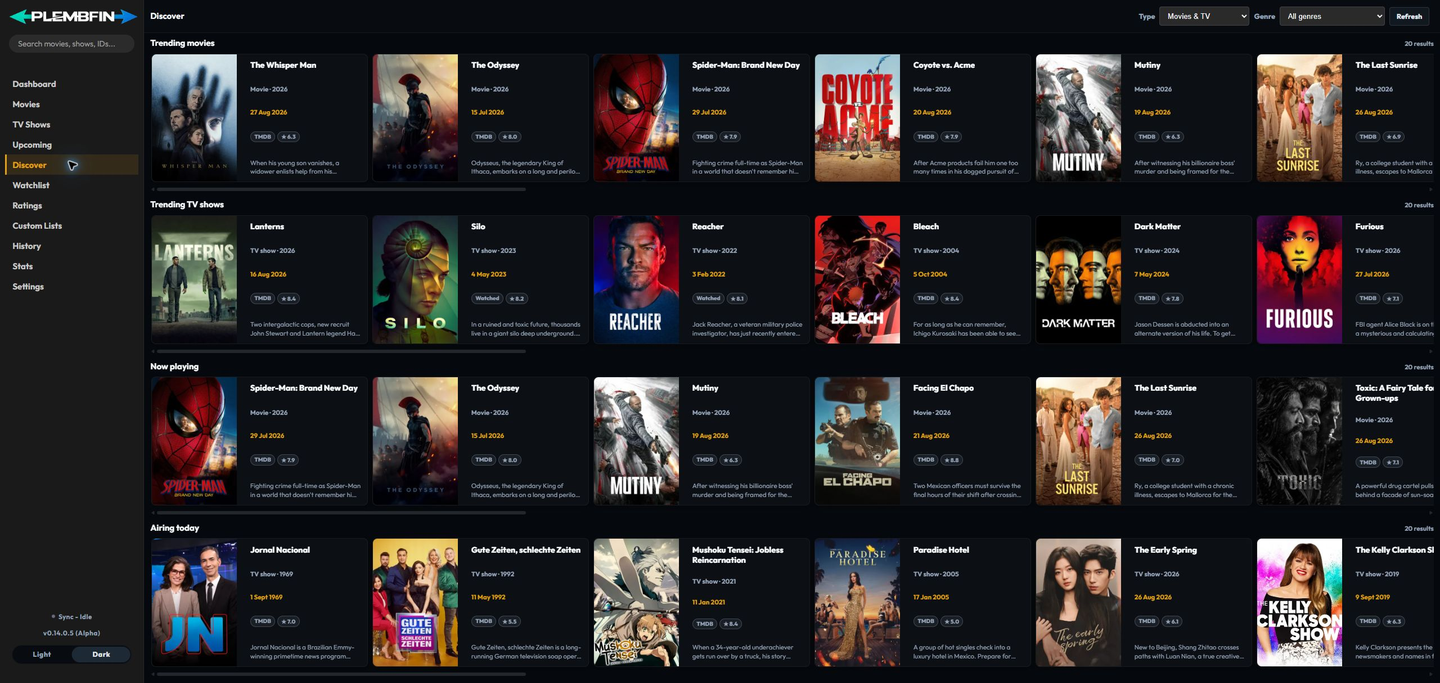
Select a card poster or title to open the standard movie or TV detail page. Cards also keep the common More options action available.
From a Discover card or detail page you can:
- add a movie or show to Watchlist;
- choose a personal Rating from 1 to 10; and
- add the title to a Custom List.
Those actions are private local choices. They do not create a watched event, alter the canonical provider match, or imply that a title is available in one of your libraries. Use the detail page’s Available on and Watch Now information to decide where a title can actually be played.
For the pages that hold these choices, see Use the dedicated Watchlist, Ratings, and Custom Lists pages for the private workflows.