
The Appearance menu is available in the app sidebar footer when a movie or TV detail page is open. It controls presentation only; it does not remove watch records, metadata, or artwork.
Theme
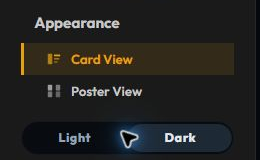
Choose Light or Dark with the separate theme control in the sidebar footer.
The choice is stored in the current browser and reused when the app opens again. Theme changes colors and contrast only; they do not alter data or sync behavior.
Media-detail options
The available switches depend on the detail page that is open:
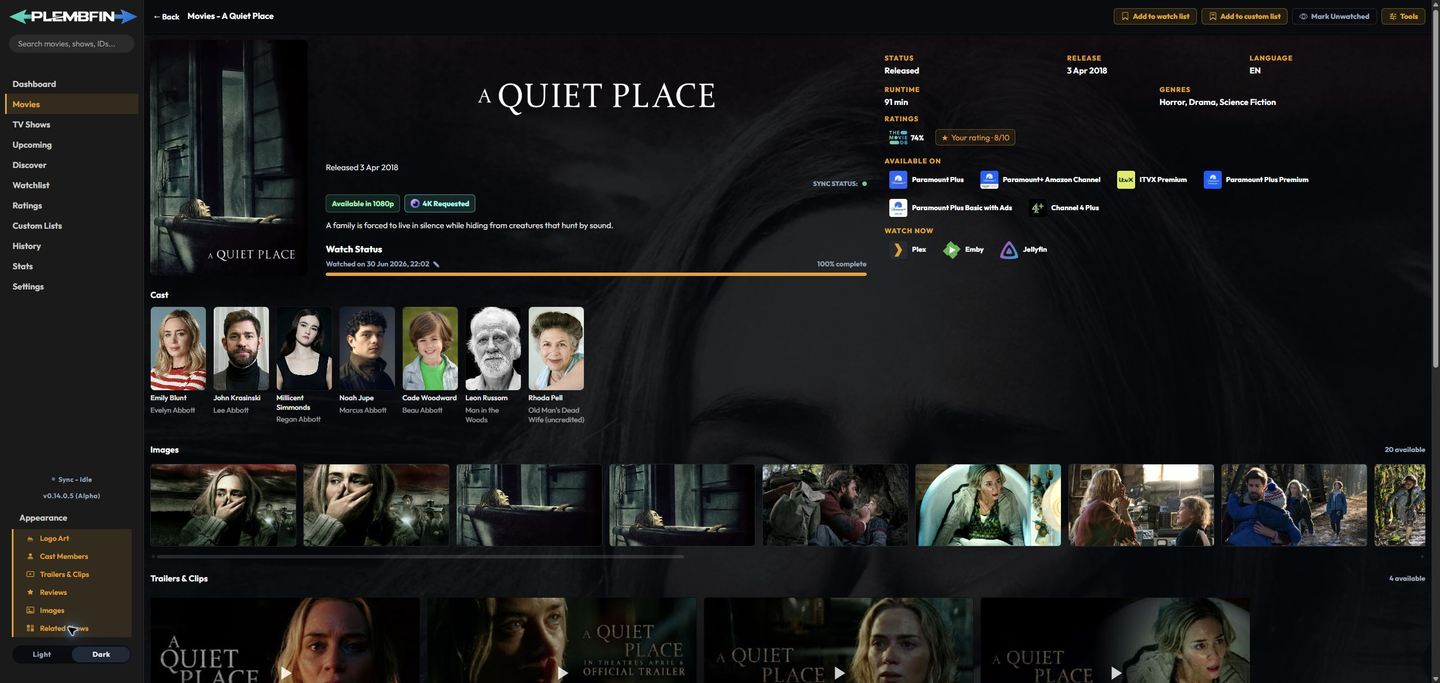
Movie and TV detail pages can provide these switches:
- Logo Art: show the provider logo when one is available.
- Cast Members: show the cast section and links to person pages.
- Trailers & Clips: show available video content.
- Reviews: show provider review content.
- Images: show the image gallery.
- Related Shows: show related and recommendation content when the page provides it.
Each switch is independent and saved as an appearance preference. Turning a section off only changes what is rendered; the provider data remains available when the switch is turned back on.
The focused Movies media page and TV Shows media page guides describe the controls in each context.
Change a setting
- Open Movies or TV Shows and select a title.
- Open Appearance in the sidebar footer.
- Turn the relevant section switch on or off.
- Navigate away and back if you want to verify that the preference was stored.
If an option is missing or does not persist, follow Appearance settings are missing or do not persist.