
Watchlist is the private “save this for later” page. It contains movies and TV shows that you want to revisit. Episode ratings are supported separately on Ratings, but episodes are not Watchlist entries. Watchlist is not a media-server queue and it never marks a title watched by itself.
Open Watchlist
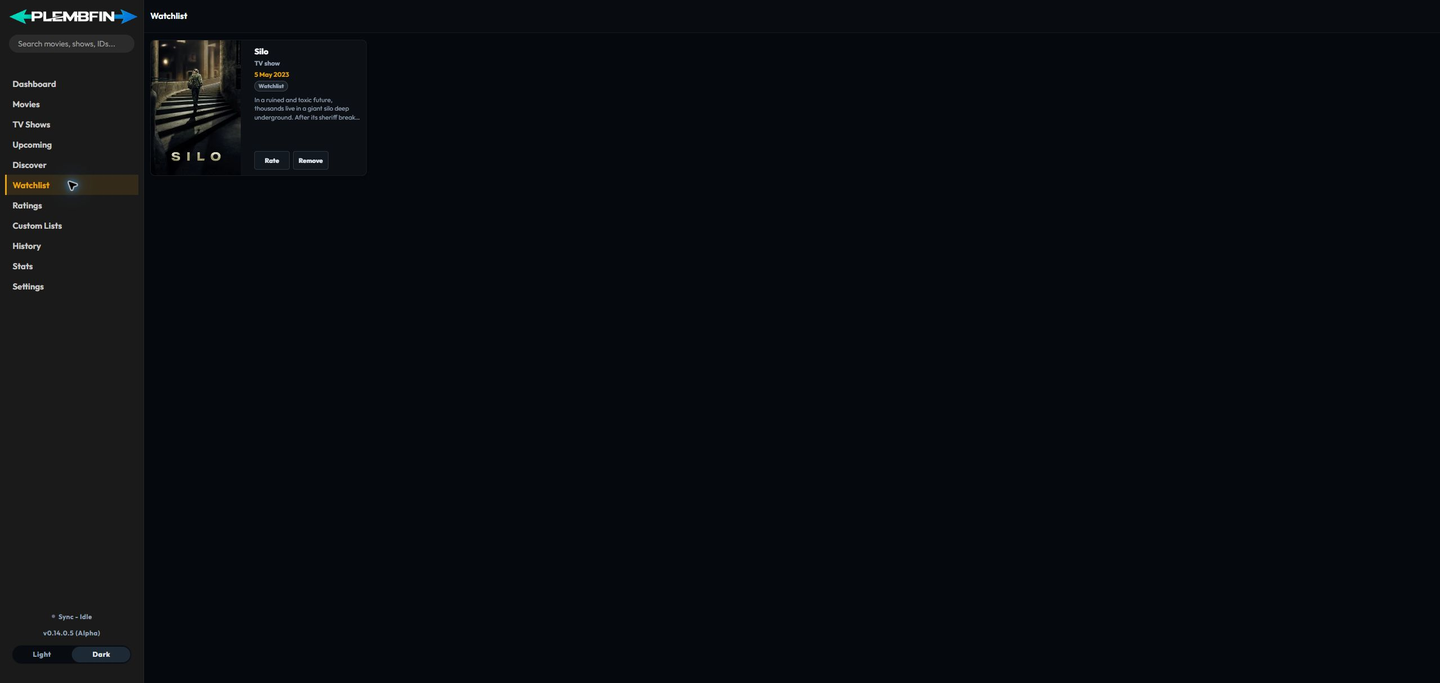
Select Watchlist in the sidebar. Cards load from Plembfin’s local private-data store, so the page remains useful even when a provider feed or media server is temporarily unavailable.
Saved media cards
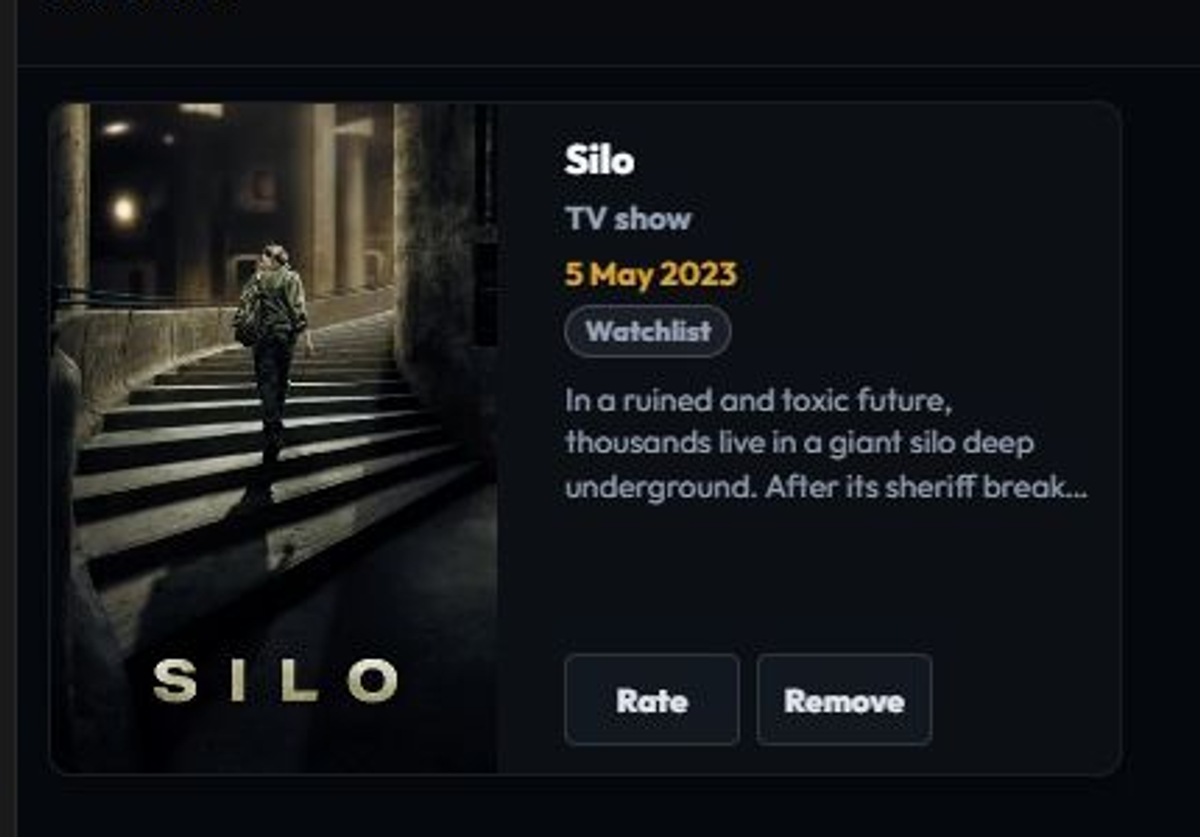
Cards represent a movie or a TV show. Select the poster or title to open the normal detail page. The card can also expose the current personal rating and list membership without changing the underlying watch record.
Add a title

Use Add to watch list from a movie or TV detail page, or use the corresponding card action from Discover or another supported media card. When the request succeeds, the action changes to Remove from watch list and the title appears on this page. Episode detail pages expose personal rating actions, not Watchlist actions.
Adding a title does not mark it watched, add it to a connected server, or change its TMDB, TVDB, Plex, Emby, or Jellyfin identity.
Sync with Plex
Watchlist sync is optional and is controlled by one Sync watchlist with Plex toggle in Settings. Plex is the only watchlist provider: its account-level Universal Watchlist can hold titles that are not already in a local library, while Emby and Jellyfin do not provide the same watchlist contract.
The first sync uses a safe union of the local and Plex lists. Later complete Plex snapshots reconcile additions and removals; an outage or incomplete snapshot cannot delete the local canonical list. A Plex-only addition is imported locally, and local changes are delivered through a durable queue.
Use Sync now for a full reconcile. Failed, unavailable, or reauthentication-required changes stay visible in the Sync panel with a Retry queued changes action. Reconnecting Plex or retrying does not roll back the local list.
Rate or remove a card
Use Rate to open the 1–10 personal rating control. The score is also visible from the Ratings page. Use Remove to take the item out of Watchlist; removing it does not remove its rating, watch history, or custom-list membership.
The page updates in place after either action. If the card does not change, reopen Watchlist and check the signed-in instance before trying the action again.
More options and detail actions
Use More options when you need an action that is not shown as a primary card button. Open the title detail page when you need watch dates, artwork, Fix Match, Force Sync, or the full Tools menu. Personal actions and maintenance tools are intentionally separate.
Empty state and privacy
An empty Watchlist means no titles are currently saved; it does not mean the library or Discover feed is empty. Watchlist data belongs to the local Plembfin instance and does not become a watched event. If Plex sync is enabled, its provider changes appear as Watchlist sync activity, but they are not watched-state destinations.
For the related pages, see Ratings and Custom Lists.