
When something looks wrong, first decide whether the problem is recording, matching, delivery, or display.
The dashboard tells you what is visible now.
Sync Activity tells you what Plembfin believes happened.
Logs explains why a request failed.
A quick diagnostic order
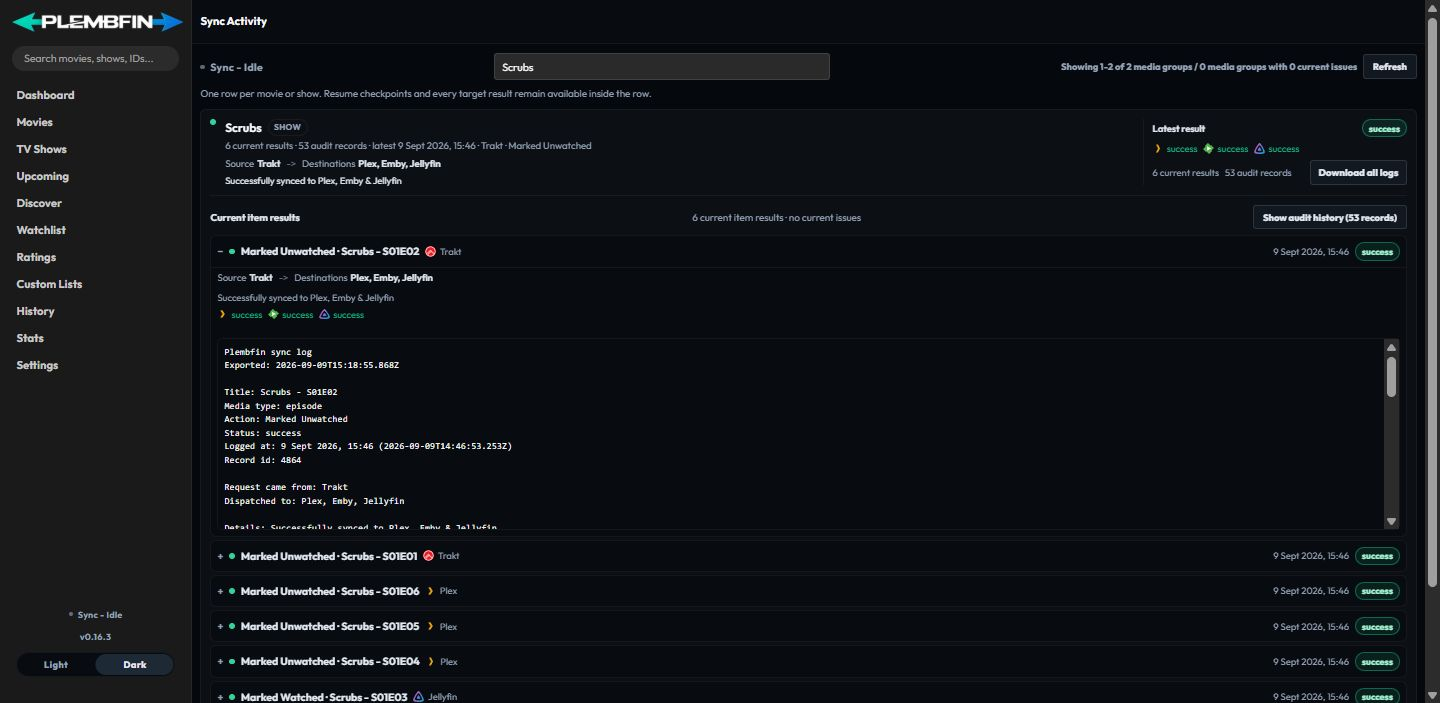
Use this order for almost every issue:
- Open the affected page and note the exact title, source, and time.
- Check whether a new row exists in History.
- Check the corresponding row in Sync Activity.
- Decide whether the result is
skippedorfailed. - Fix the source, match, or destination named by the row.
- Retry only that item or destination and verify the result.
Now Playing is empty or stale

- Confirm you are on Dashboard → Now Playing and that the player is still active.
- Check the media-server connection under Settings → Media servers.
- Confirm the Plembfin host can reach the server URL, not just the browser.
- Reopen the Dashboard or return to it from another tab to request an immediate refresh, then inspect Settings → Logs if the session is still missing.
- Check the active-session TTL under Settings → Sync → Sync Tuning.
A stale session can mean the source stopped sending updates.
It does not automatically mean the title was watched.
If the dashboard is healthy but the live panel remains empty, continue with media-server event setup.
Up Next resume progress is missing or wrong
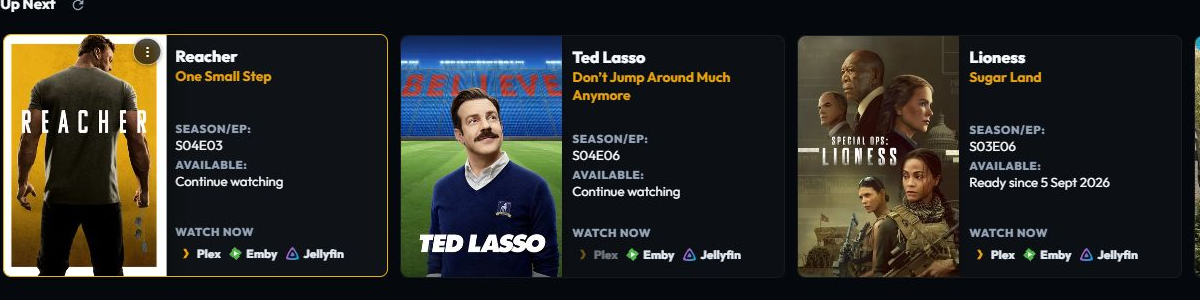
- Open the Dashboard and check Up Next. Note the title, percentage, and source badge on its resume card; current history rows contain completed watches only.
- Confirm the source media server is connected under Settings → Media servers.
- Check that the player supplied both position and duration; a watched event without usable duration cannot produce a reliable resume marker.
- If the item is already complete, check History and the watched-state rules before clearing anything.
- For a stale marker, choose Clear Progress from Up Next. To complete the item deliberately, choose Mark Watched, then verify the destination result in Sync Activity.
If an episode name is missing, run Settings → Tools → Database Repairs → Restore Missing Episode Names. Retryable metadata failures remain actionable; confirmed metadata without a title is displayed as No title provided.
Discover is empty or unavailable
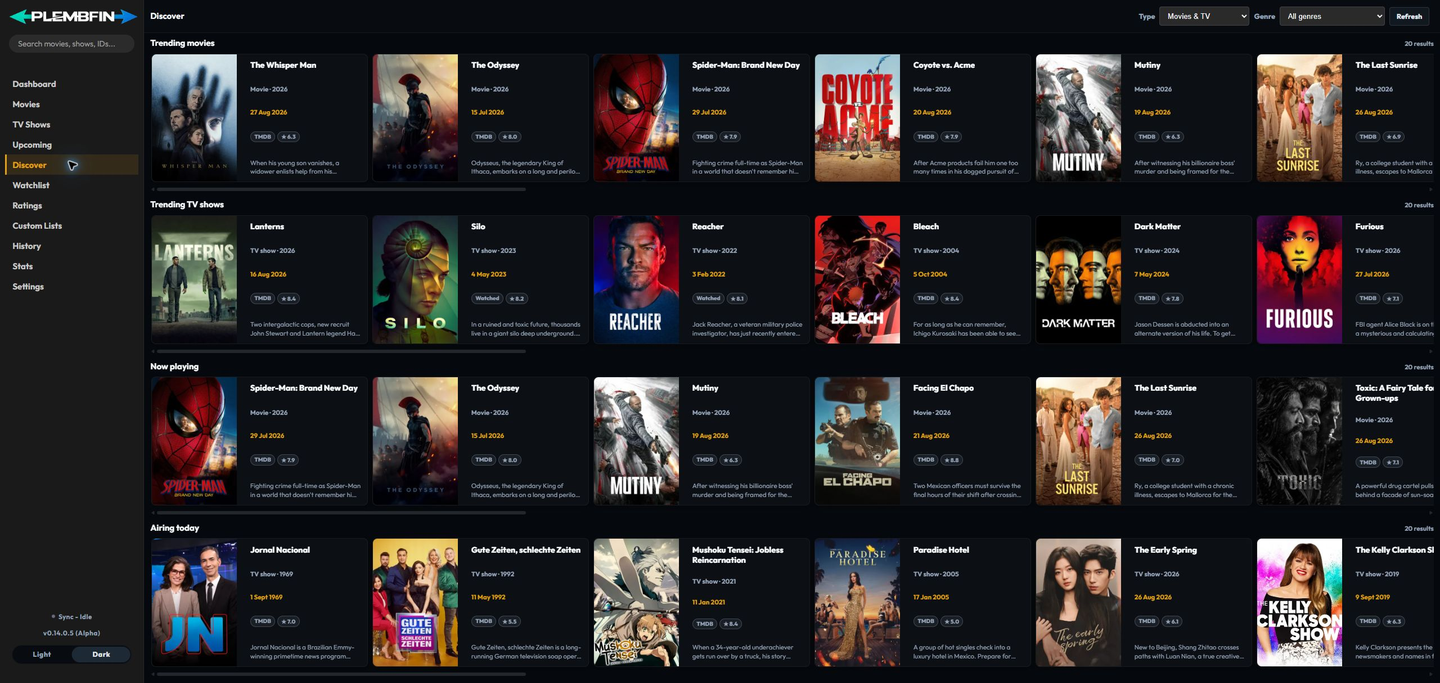
- Open Settings → Metadata and confirm that a valid TMDB API key is configured.
- Return to Discover, choose Movies & TV, and press Refresh.
- If the page reports that the server route is missing, restart Plembfin so the current
build is serving
/api/discover. - If TMDB is rate-limited or unavailable, wait and use Try again rather than changing local watch state.
- Check Settings → Logs for the provider response when the error repeats.
Discover is an external feed. An empty Discover rail does not mean that your local library or watch history has been deleted.
Watchlist, rating, or list action did not update
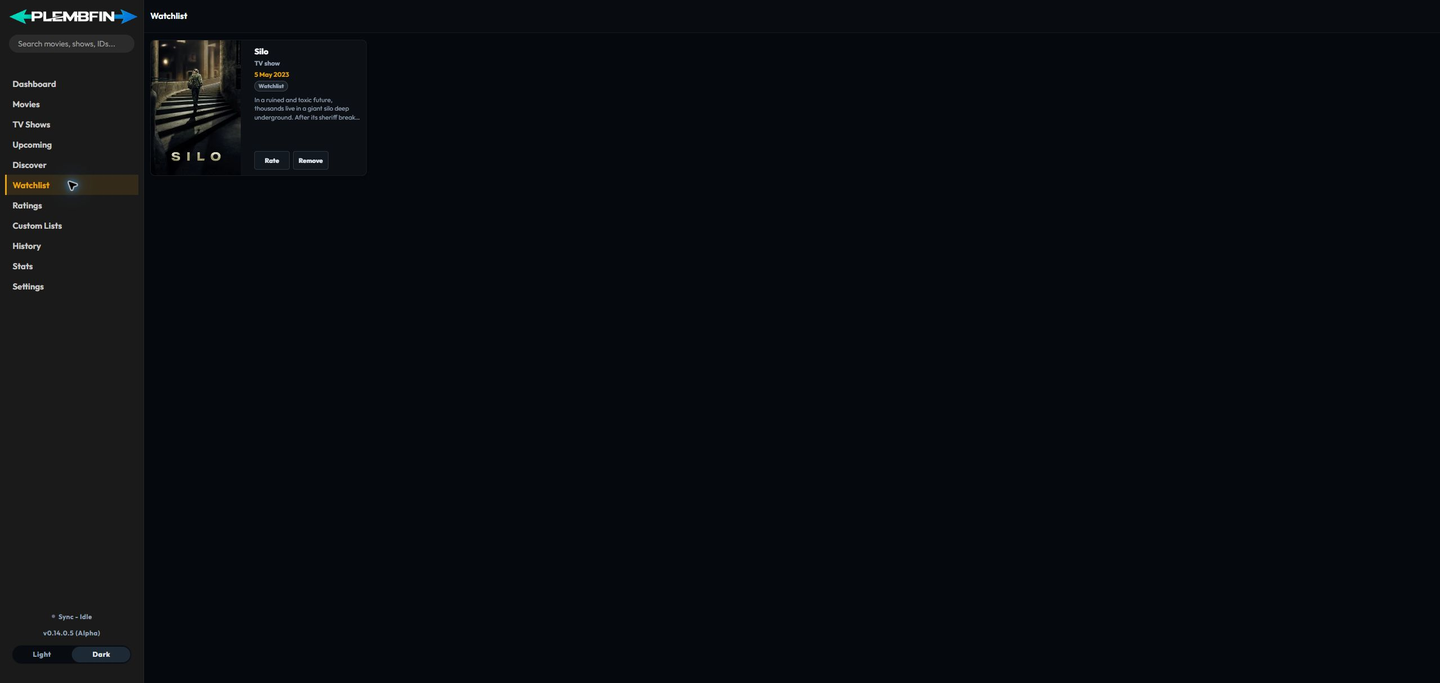
- Confirm the app still shows your signed-in account and reopen the relevant Watchlist, Ratings, or Custom Lists page.
- Wait for the card action to finish and check the inline success or error message.
- Reload the personal page so it can fetch the current local snapshot again.
- For a custom list, check that the intended list is selected and that the title is not already marked Added.
- If the action fails for every title, restart the current Plembfin build and inspect Settings → Logs for the Watchlist, Ratings, or Custom Lists request.
These actions do not create a watch event. Check History and Sync Activity only when the problem is with watched state rather than a private personal choice.
For a provider issue, check the relevant independent sync panel under Settings → Sync: Personal Rating Sync covers Plex, Emby, Jellyfin, and Trakt; Plex Watchlist Sync covers only Plex. Use Sync now or the panel’s retry action after correcting the provider connection.
Fix Match returns no useful result
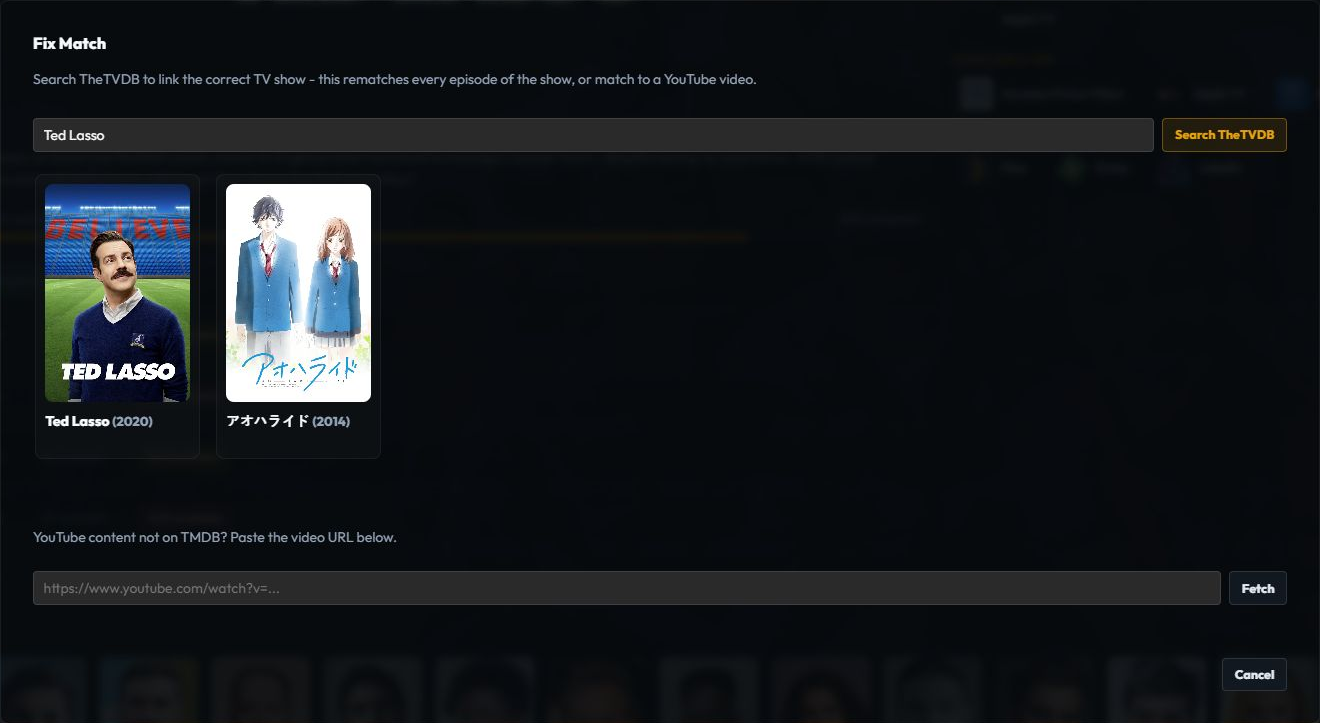
Fix Match is for a wrong or missing provider identity.
It is not the same as choosing a different poster in Edit Images.
It cannot make a title appear on a server that does not contain it.
For a movie:
- Open the movie detail page, or open the movie card’s three-dot menu.
- Choose Fix Match.
- Search by the exact title, year, or a distinctive title fragment.
- Compare the year and result details with the local movie.
- Select the correct TMDB result and confirm it.
- Reopen the detail page and check the provider identity and artwork.
- Open Sync Activity and retry the affected destination if the original row was skipped.
For a TV show:
- Open the show detail page. Start from the show rather than an individual episode when the series identity is wrong.
- Choose Fix Match and search for the series.
- Compare the title, year, network, and season information.
- Select the correct TheTVDB series and confirm it.
- Wait for the background metadata, episode rematch, and poster refresh.
- Confirm the seasons and episodes now belong to the intended show.
- Rerun the affected sync and check its destination rows in Sync Activity.
If the correct title is not returned, confirm the relevant provider is configured in Metadata Providers.
Try the search again after confirming the provider configuration.
If the provider result is correct but the destination still has no copy, read Sync Issues and Match Report.
An identified item missing from one server is a library difference, not a match that can be fixed.
The complete action reference is Fix Match.
The poster three-dot menu is missing or does nothing
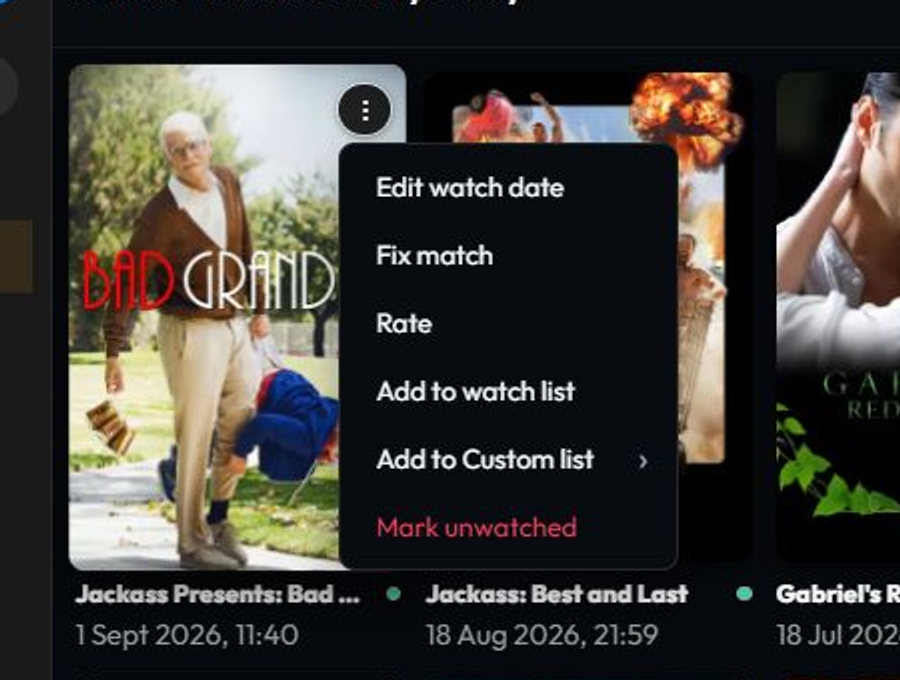
The poster menu is available on movie, TV, and supported History cards.
On a desktop pointer, hover the card to reveal the three-dot button.
Select it and choose Edit watch date, Fix match, Rate, Add to watch list, Add to Custom list, or Mark unwatched.
Use this recovery sequence:
- Open the relevant Movies, TV Shows, or History view.
- Search for the title and wait for its poster card to finish loading.
- Hover the card and select the three-dot button.
- Choose one action and wait for its saving or confirmation state to finish.
- Refresh the current view and check History or Sync Activity for the result.
- If the card menu is unavailable in the current layout, open the title detail page and use its visible action controls instead.
Do not repeat a watch or unwatch action while the first request is still saving.
For the full list of menu actions and their effects, see the shared library controls.
Appearance settings are missing or do not persist
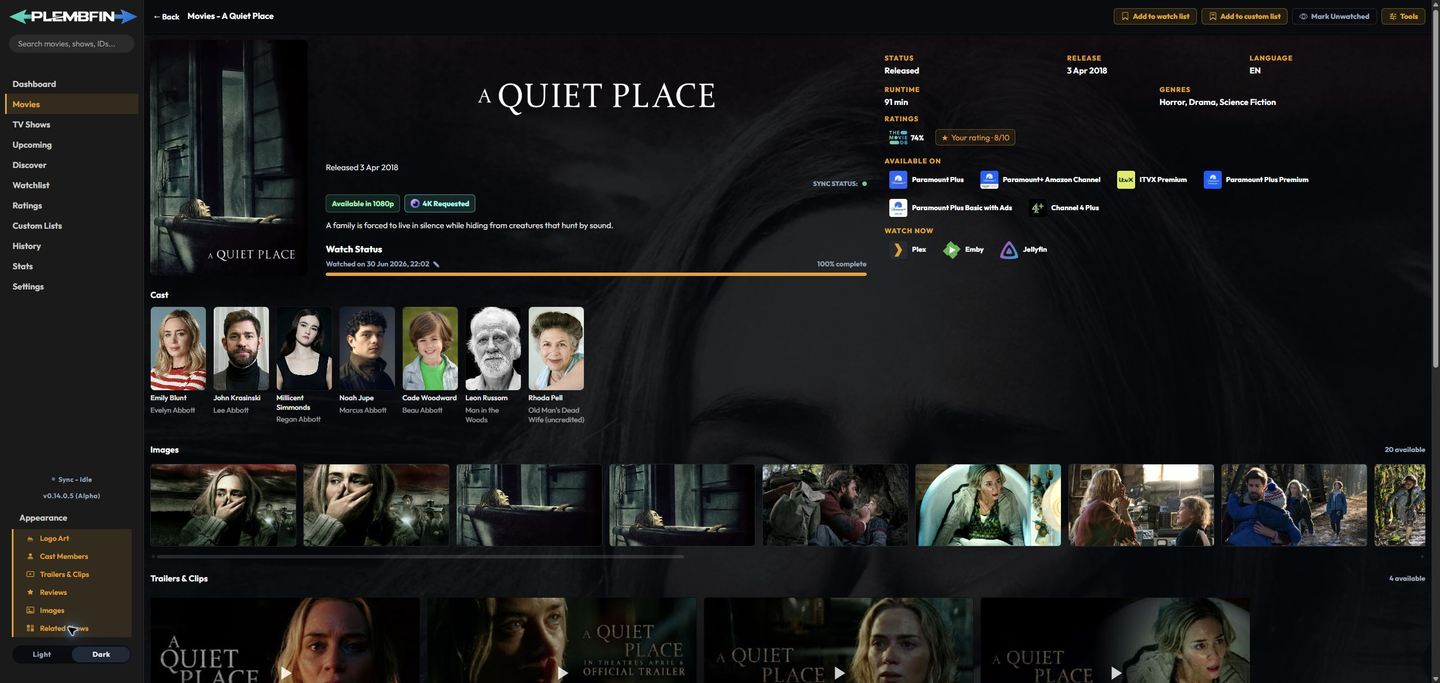
Appearance is available in the app sidebar footer when a movie or TV detail page is active.
Use the correct scope:
- Open Movies or TV Shows and select a title.
- Open Appearance in the sidebar footer.
- Change Logo Art, Cast Members, Trailers & Clips, Reviews, Images, or Related Shows as needed.
- Navigate away and return to confirm the selected detail sections remain.
If the menu is not visible, make sure a movie or TV detail page is active.
If a change disappears after a reload, wait for the save state, reload once, and check Logs for an appearance-save error.
The switches change presentation only.
They do not remove metadata, artwork, or watch history.
See the Movies media page, TV Shows media page, or complete Appearance guide.
Refresh Metadata did not update a title
TMDB and TheTVDB refresh different parts of the app.
Run the provider that owns the missing information.
Verify the detail page after the operation completes.
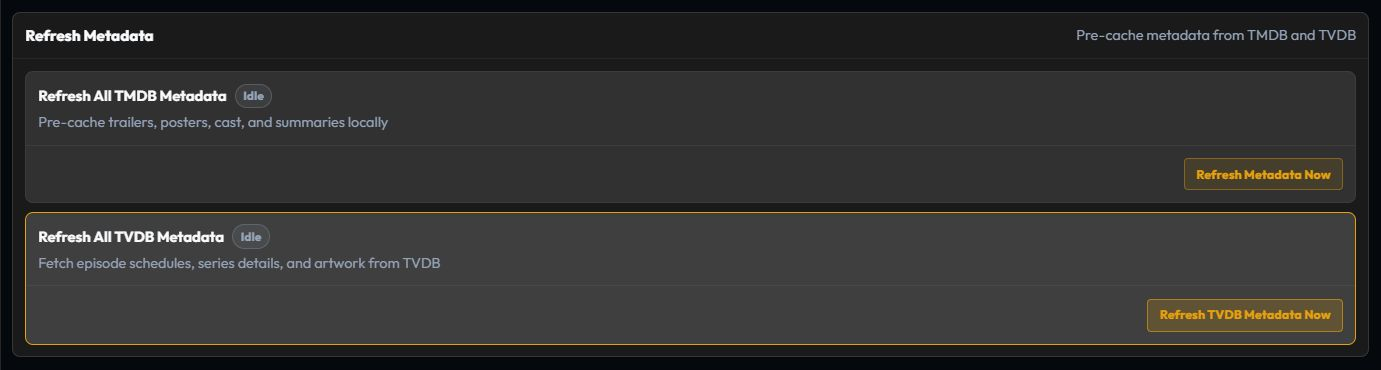
For a TMDB refresh:
- Open Settings, then Metadata.
- Confirm that TMDB is configured.
- Choose Refresh All TMDB Metadata.
- Wait for the progress or completion status to finish.
- Reopen the affected movie or show and check its overview, poster, cast, trailers, reviews, or images.
For a TVDB refresh:
- Open Settings, then Metadata.
- Confirm that TheTVDB is available.
- Choose Refresh All TVDB Metadata.
- Wait for the status to return to idle or success.
- Reopen the show and check its series identity, seasons, episodes, air dates, and TV artwork.
If the operation reports an error, open Settings, then Logs and compare the provider error with the title’s Sync Activity row.
If the metadata belongs to the wrong title, use Fix Match first.
Clear the image cache only when the data is correct but an old poster or backdrop is still displayed.
Refreshing metadata does not change watched state or watch dates.
The full procedure is Refresh all metadata.
A watched event was not recorded
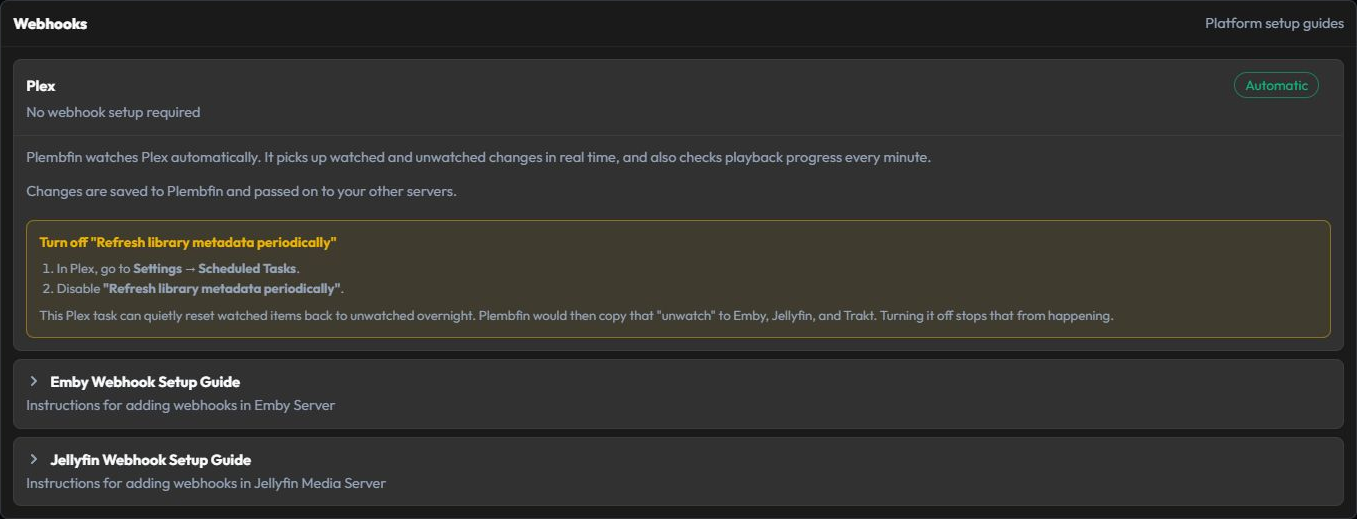
- Make one new watched/unwatched change on a title already present in the local library.
- Check the sender:
- Plex needs its connection URL/token and built-in listener available.
- Emby needs
Mark Played/Mark Unplayedor the relevant playback events. - Jellyfin needs
User Data Savedor the relevant events from the Webhooks plugin. - Trakt needs a healthy authorized connection.
- Confirm the webhook URL and secret if the provider uses webhooks.
- Wait for the polling backstop.
- Inspect Logs for authentication, malformed payload, or connection errors.
If no History row appears, the issue is still in recording or transport.
If the event was a provider Mark Played flag without a trustworthy completion time, check Manual Watch review. Approving it assigns the date policy you choose; dismissing it marks the reporting item unwatched and leaves the review pending if the provider correction cannot be completed.
Follow the exact provider setup in Integrations before investigating a destination.
It recorded but did not reach another service
- Open the event in Sync Activity.
- Read the destination result and the reason.
- If it is skipped, open the title details and repair the provider/library match.
- If it is failed, check the destination connection and the server log for the request.
- Correct the connection or match.
- Use Retry failed or the row’s targeted retry, then confirm the destination result.
Do not immediately run a whole-library Force Sync unless the scope is understood.
The sync-model guide explains why a skipped destination is different from a failed delivery.
Resume progress did not carry over
Confirm that the source emitted the position fields Plembfin needs:
- Plex: lifecycle events with
viewOffsetanddurationwhere available. - Emby:
PlaybackPositionTicksorPositionTicks. - Jellyfin:
PlaybackPositionTicks,PositionTicks, or the item playback position.
Then:
- Check that the item is not already marked watched.
- Confirm the source and destination refer to the same provider match.
- Check Sync Activity for a skipped or failed resume delivery.
- Play briefly, stop, and verify the new position before attempting a bulk repair.
A newer completed watch takes precedence over an older resume marker.
See watched state and resume progress.
Posters or metadata are missing

- Open Settings → Metadata and confirm the provider key is configured.
- Check for provider rate-limit or authentication errors in Logs.
- Run Refresh Metadata for the affected title or a small scope.
- Check Settings → General → Storage & cache if artwork is consistently absent.
- Reopen the detail page after the refresh completes.
A provider failure should not erase the local watch archive.
See metadata and artwork providers.
Webhook returns 401

- Open Settings → Webhooks → Setup Guides.
- Copy the full URL, including
?token=, when the sender cannot set a header. - If using a header, use the accepted webhook secret or bearer form exactly as shown.
- If the secret was rotated, update every sender using the old URL.
- Send one test event and confirm a new Sync Activity row.
Do not paste the webhook URL into a public issue or screenshot.
The token may be in the query string.
See Webhooks and the provider-specific integration guide.
Trakt changes keep coming back
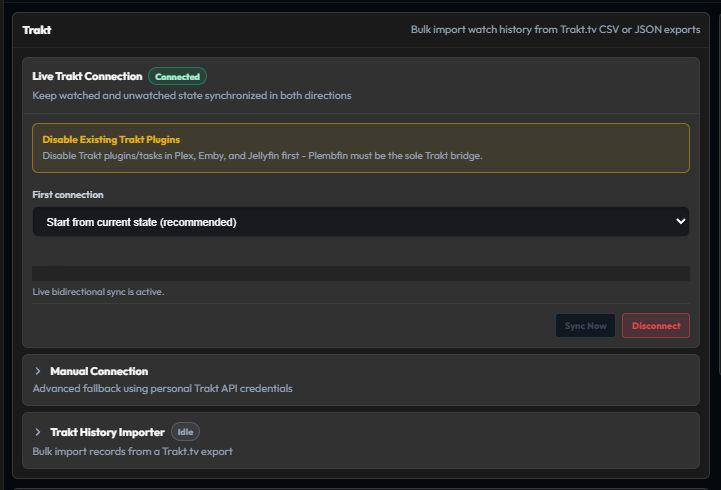
- Make Plembfin the only Trakt bridge.
- Disable Emby and Jellyfin Trakt plugins.
- Disable their scheduled Trakt tasks.
- Wait for existing queued work to finish.
- Correct the title once in Plembfin.
- Watch Sync Activity for another writer before retrying.
A second writer can reapply older state after Plembfin has already corrected it.
For an episode-level Trakt not_found result, open the show group in Sync Activity and use
Fix show match & retry all. If the show is not
available in Trakt, dismiss the Trakt error instead of retrying the same unresolved match.
Read Trakt setup for the intended ownership model.
Settings or config did not save
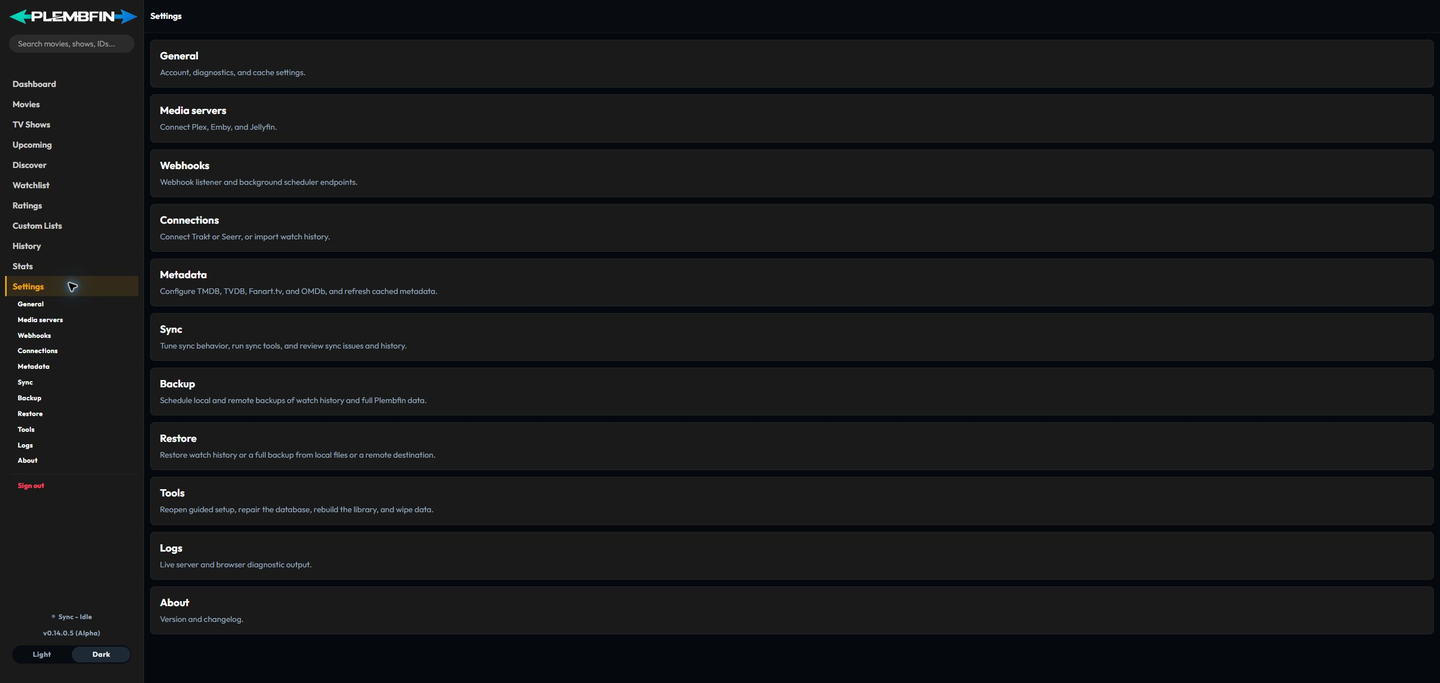
- Wait for the visible save status to finish.
- Refresh the page and check whether the value persisted.
- Confirm the
/datavolume is mounted and writable. - Check Logs for validation or database errors.
- Remember that credentials changed from Settings take precedence over the original environment values.
If only one setting fails, follow its group guide in Settings instead of resetting the whole instance.
The scheduler is not running
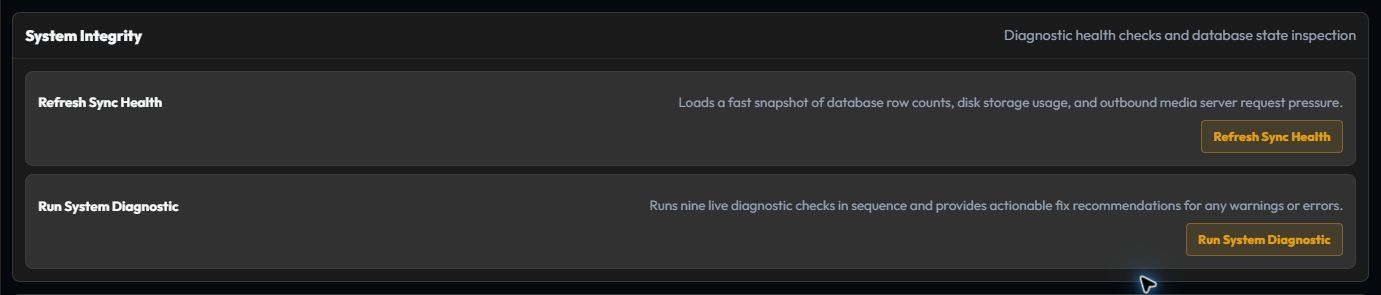
- Confirm the process is running and the data directory is writable.
- Check the system clock and timezone.
- Confirm the default
ROLE=allprocess is active, or that the worker exists in a split web/worker setup. - Confirm the worker has the shared data volume.
- Check that the SQLite lease is not blocked.
- Review Logs and wait for the next scheduled interval.
The default scheduler runs once per minute.
A temporary delay is different from a worker that never records a heartbeat.
Use Backups and operations for the host-level checks.
When to stop and restore
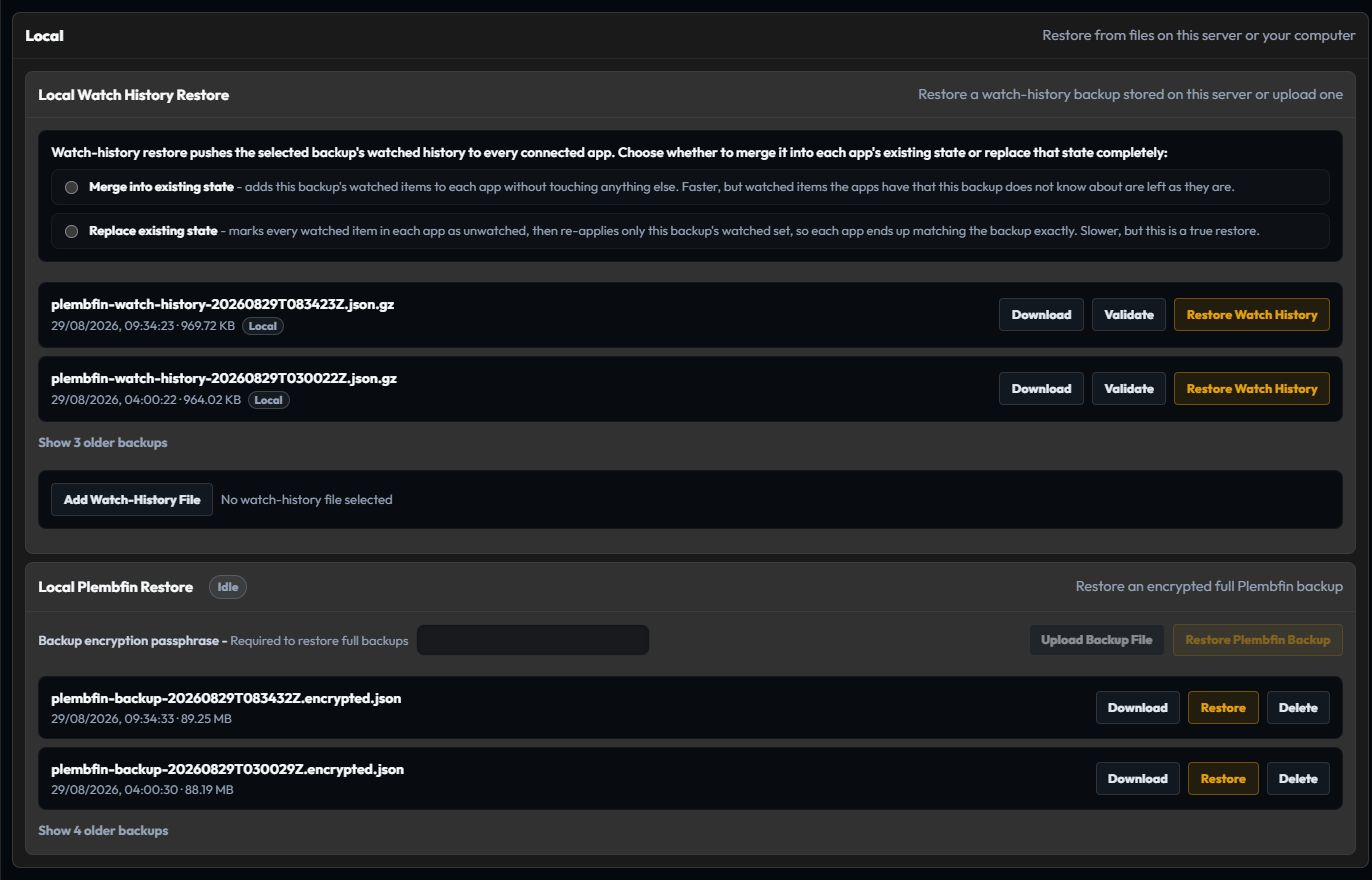
If a bulk operation produced unexpected unwatches:
- Stop making further changes.
- Preserve the current logs and Sync Activity evidence.
- Identify the last good backup.
- Restore the local archive first.
- Review destination scope before sending anything back out.
- Reconnect or repair one destination at a time.
For implementation-level details, use the technical troubleshooting source on GitHub.