
Select a movie, show, episode, provider result, or person to open its detail context.
The detail page brings identity, artwork, watch state, related content, and destination actions together so a correction can be made against the correct record.
Page actions
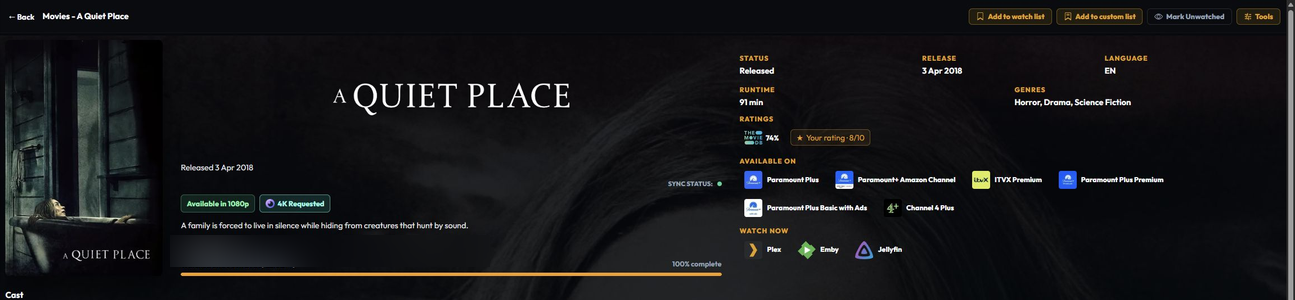
The action bar at the top of a detail page contains the controls that apply to the current movie, show, or episode:
- Hide Spoilers hides the synopsis and artwork for unwatched episodes while you inspect a show. It changes presentation only.
- Force Sync opens a title-scoped sync operation. Use it when one title needs its local watched and resume state replayed without starting a whole-library operation.
- Mark Unwatched clears the current canonical watched state after confirmation and sends the correction through the normal sync pipeline.
- Edit Images opens the artwork picker described in Edit Images.
- Fix Match opens the provider identity search described in Fix Match.
- Merge combines the current TV show’s episode records with another show. Make a backup and check the preview before confirming because this changes the local record structure.
- Delete removes the tracked title after confirmation. It is not a way to remove a file from Plex, Emby, or Jellyfin; back up first and use it only when the local record itself should be removed.
- Info opens a read-only view of watch totals, the latest watched date, sync results, season and episode watch records, and the available audit detail. Export saves the information for later investigation.
The bar is deliberately title-scoped.
Library-wide repairs and imports live under Settings → Sync, while card-level quick actions live in the poster three-dot menu.
What the page can contain
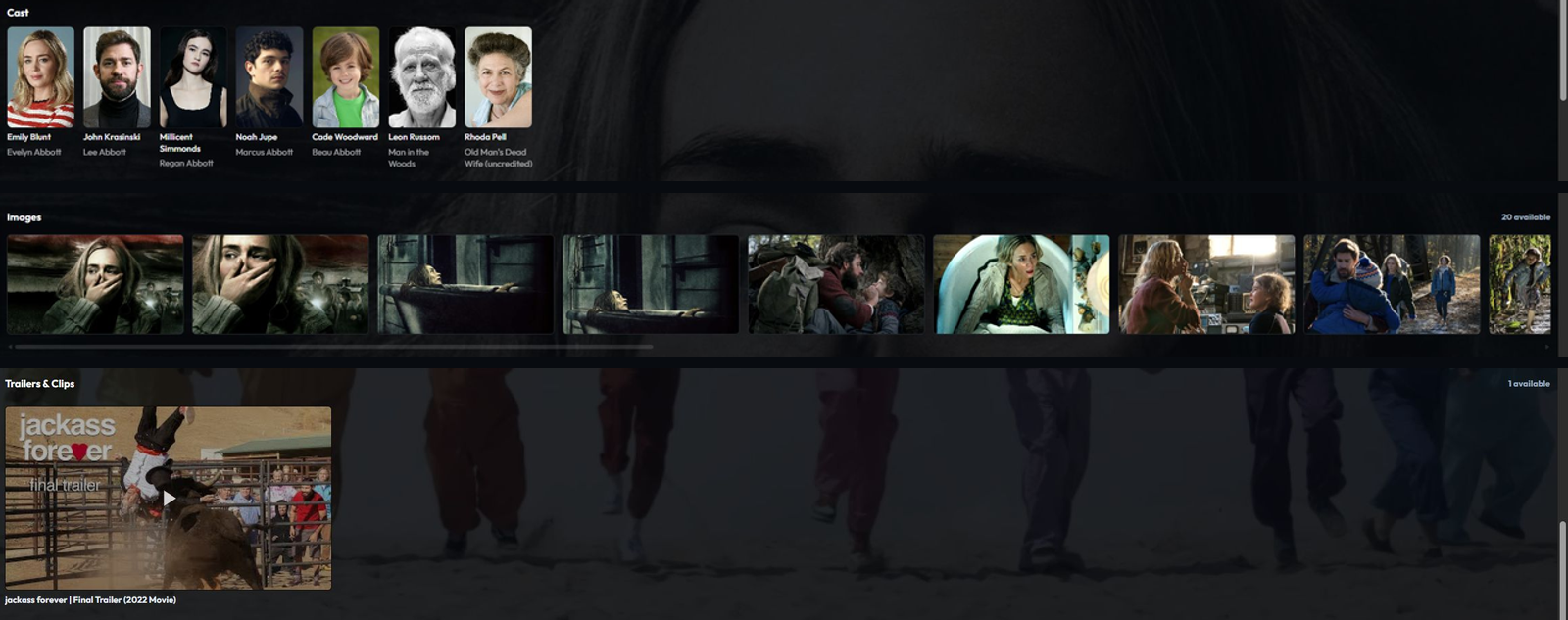
Depending on the media type and configured providers, details can include:
- poster, backdrop, logo, overview, genres, runtime, status, and provider identifiers;
- TMDB, TheTVDB, and optional IMDb ratings;
- TV seasons, episodes, air dates, and watched progress;
- cast members and person pages;
- trailers and clips;
- reviews, image galleries, recommendations, and related shows;
- network and availability information;
- Seerr request controls when Seerr is connected; and
- links back to a matching Plex, Emby, or Jellyfin item.
Optional sections are controlled by Appearance. For page-specific guidance, see Movies media page or TV Shows media page.
Provider metadata describes the title, but it does not prove that the title exists in every connected library.
Use the local match and availability information for that decision.
TV detail controls
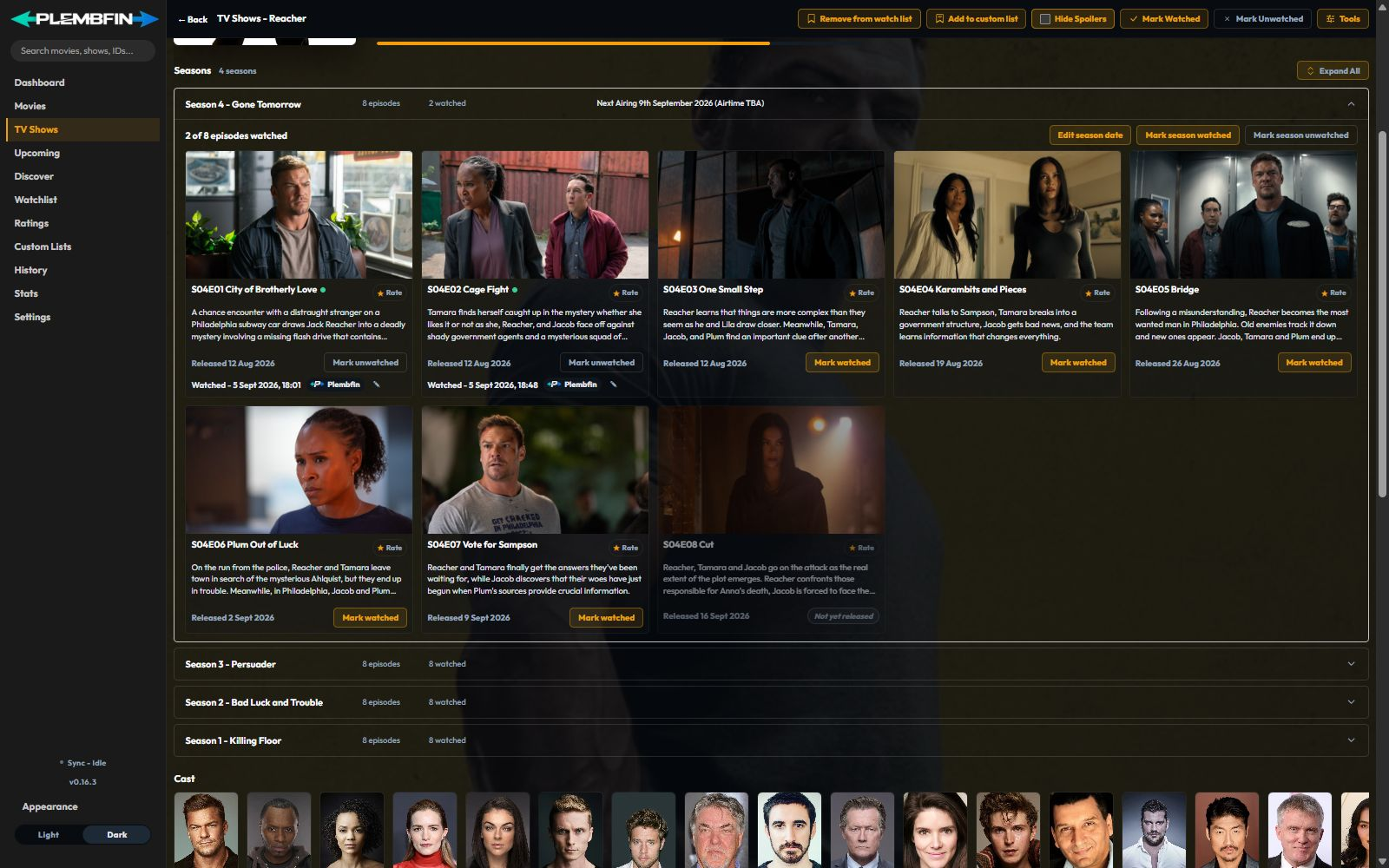
TV show details add season and episode controls below the identity and progress summary:
- Season rows load their episode details when expanded, so the initial show page can render without fetching every season before the header and summary appear. Expand All opens every season progressively; the season rows can also be opened individually.
- Season navigation, artwork, and episode loading stay incremental. Reserved image space and shimmer placeholders keep the page stable while off-screen artwork loads, and a refresh keeps the mounted detail view visible instead of replacing it with a blank page.
- Each season row reports its episode total, watched count, and known availability. A season with no availability is still a valid metadata record; it simply has no matching copy on the connected media servers currently reporting to Plembfin.
- Episode rows expose the watch, unwatch, date, and title-scoped sync actions appropriate to that episode.
- Episode rows and history cards prefer the real stored episode name. If an episode name is missing, run Settings → Tools → Database Repairs → Restore Missing Episode Names. A verified metadata record with no title is shown as No title provided.
- Request 4K appears when Seerr is connected and the configured request service exposes a 4K request path. It creates a request; it does not mark the episode watched.
Bulk show and season actions preserve episode identity and do not treat unaired episodes as completed watches. Mark season watched changes only episodes that are still unwatched and eligible; existing watched episodes remain unchanged. When every episode is already watched, the action becomes Resync season, which replays state without creating another watch event.
If the count is wrong, fix the show identity before applying a bulk action.
Watch actions and dates
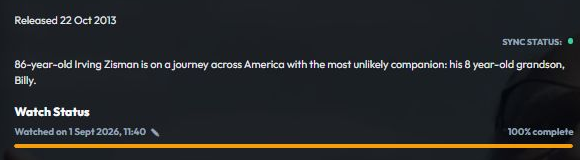
Mark watched
On a movie or episode, Mark Watched opens the date choices supplied by the app.
These can include today, the release date, a date relative to a nearby episode, or a custom date.
The saved date becomes part of the canonical watch record and is sent through the normal sync pipeline.
On a TV show, a watch action can target one episode, one season, or the whole show.
Bulk actions preserve each episode’s identity and do not count unaired episodes as completed.
If everything in the selected scope is already watched, the action becomes a resync.
The existing state can then be sent again without creating another watch event.
Mark unwatched
Mark Unwatched clears the current canonical watched state.
It is a deliberate correction and is propagated to connected destinations.
It does not delete the title’s provider metadata.
Edit watch date
Use Edit watch date when the watch happened but the recorded date is incorrect:
- Open the title detail page or the poster three-dot menu.
- Choose Edit watch date.
- Select an existing viewing, or choose Add watch date for a genuine rewatch.
- Set the date and time.
- Save and wait for the action to finish.
- Check the destination result in Sync Activity.
Removing a date requires confirmation.
If other dates remain, the newest remaining watch is the canonical watched date.
If none remain, the title becomes unwatched.
Fix Match
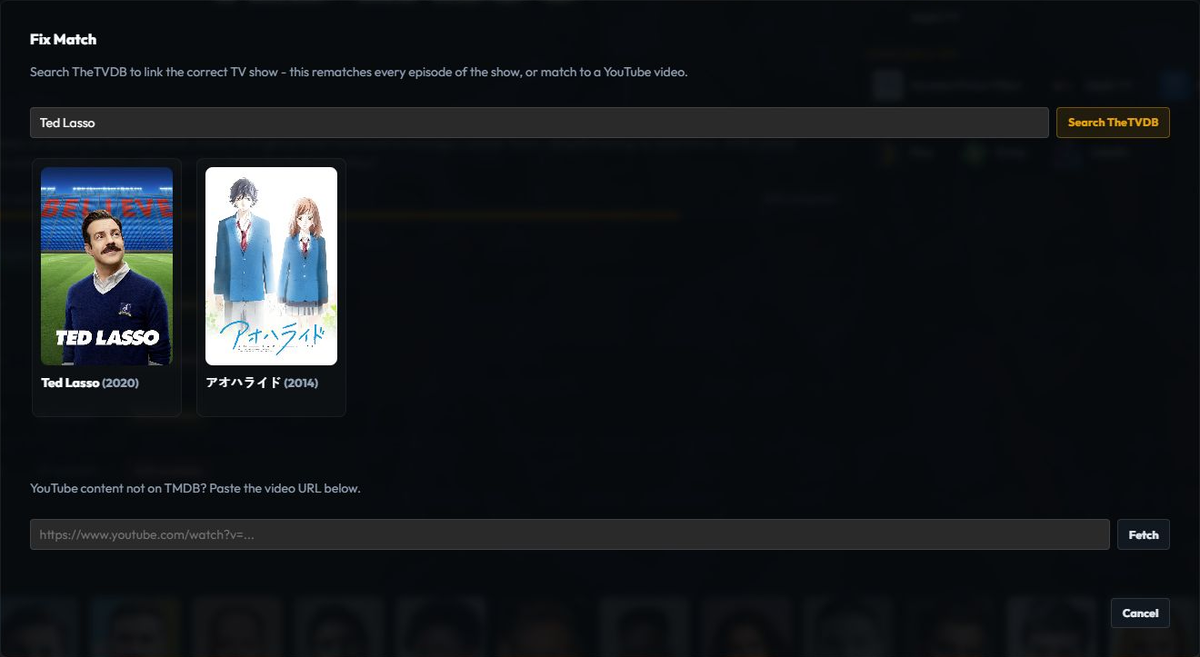
Fix Match changes the provider identity of the local record.
Use it when a title is attached to the wrong movie or TV series.
It is different from Edit Images.
An artwork search changes the images being browsed, while Fix Match changes the identity used by the archive and future syncs.
Fix a movie match
- Open the movie detail page, or open the movie card’s three-dot menu.
- Choose Fix Match.
- Search by title, year, or a distinctive part of the title.
- Compare the result’s year and metadata with the local movie.
- Select the correct TMDB result.
- Confirm the change.
- Reopen the detail page and check its provider details, poster, and Sync Activity.
The selected TMDB identity is saved to the local watch record.
Existing history is reconciled with the corrected identity rather than being left permanently under the old one.
Fix a TV show match
- Open the show detail page. For an episode card, use the show-level match action so the series identity is corrected for the whole show.
- Choose Fix Match.
- Search for the series and compare title, year, network, and season information.
- Select the correct TheTVDB series.
- Confirm the change.
- Wait for the background metadata and progress refresh.
- Confirm the intended seasons and episodes, then check Sync Activity before retrying a skipped destination.
TV Fix Match applies the selected series identity across its episode records, then refreshes the
corrected TV metadata and warms the relevant posters before returning to the show page. Check
Sync Activity for any destination retry that still needs attention. For Trakt not_found results,
use the show-wide Fix show match and retry action.
Episode links and notifications use the explicit parent-show identity when one is available, so an episode provider ID cannot accidentally open a different series route. If the parent identity is missing, the app keeps the episode coordinates on a title/search route until the match is repaired.
If no reliable identity exists, use the Sync Issues match report.
Edit Images
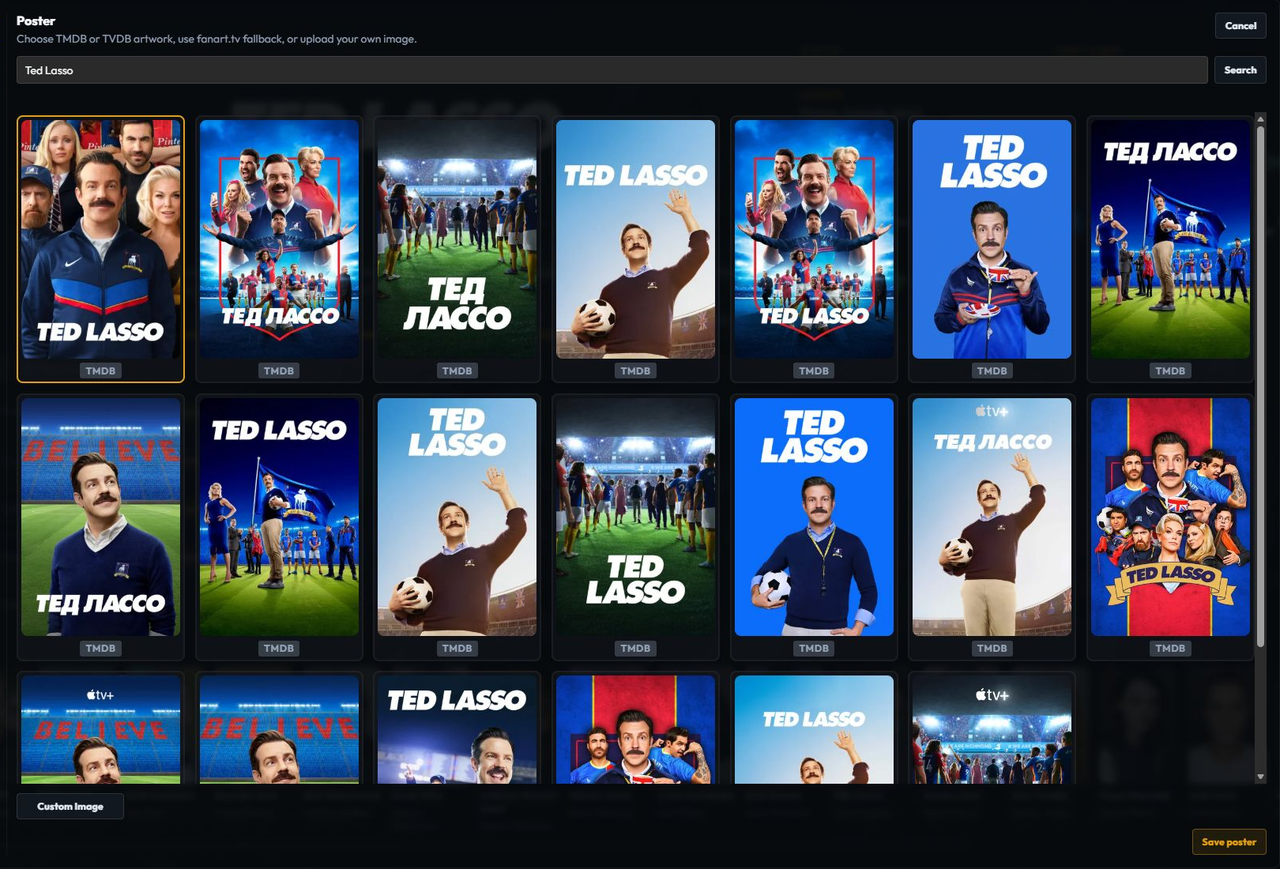
Edit Images changes the artwork displayed for the local record.
The picker can browse poster, logo, and backdrop images from TMDB, TheTVDB, and Fanart.tv when those providers are configured.
- Open the title detail page.
- Choose Edit Images.
- Select the artwork type to change.
- If the provider identity is wrong, use the picker search to browse the correct title.
- Select an image and save.
- Reopen the detail page if the old artwork is still cached.
Selecting a title inside the artwork picker changes the title used to browse images.
It does not relink the watch record.
Use Fix Match for that.
Personal lists and the Tools menu

Personal actions
Use Add to watch list, Add to custom list, and the personal rating control to change local choices from the detail page. Watchlist and custom-list actions apply to movies and TV shows; episode detail keeps the personal rating action. The labels reflect current state: a saved title offers Remove from watch list, a member offers In custom list, and a scored title shows its current 1–10 value.
Watchlist, ratings, and custom lists are private local choices. They do not mark an item watched or change the provider identity used by sync. See the dedicated Watchlist, Ratings, and Custom Lists guides.
Tools menu
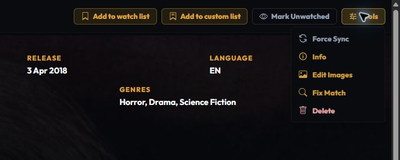
The permanent Tools menu is present on movie and TV detail pages. Open it when the current title needs maintenance rather than a Watchlist, Ratings, or Custom Lists change.
Force Sync
Choose Force Sync when one title needs its local watched and resume state replayed or when you need to pull that title’s state from a selected destination. It is title-scoped and does not replace the broader tools under Settings → Sync.
For a single title:
- Open Tools → Force Sync.
- Choose the direction and destination shown by the dialog. Push sends Plembfin’s recorded watched or resume state out; pull imports the selected title’s state from a connected server.
- Review the preview before confirming, especially when pushing because remote state can be overwritten.
- Check the result in Sync Activity.
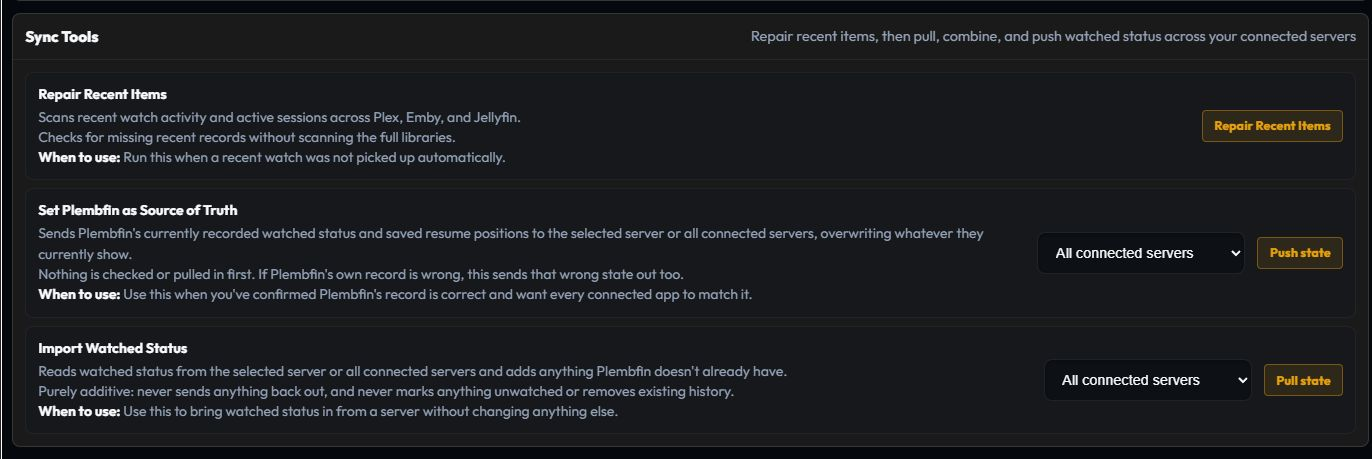
For wider scope, use Repair Recent Items, Set Plembfin as Source of Truth, or Import Watched Status under Settings → Sync → Sync tools.
Info
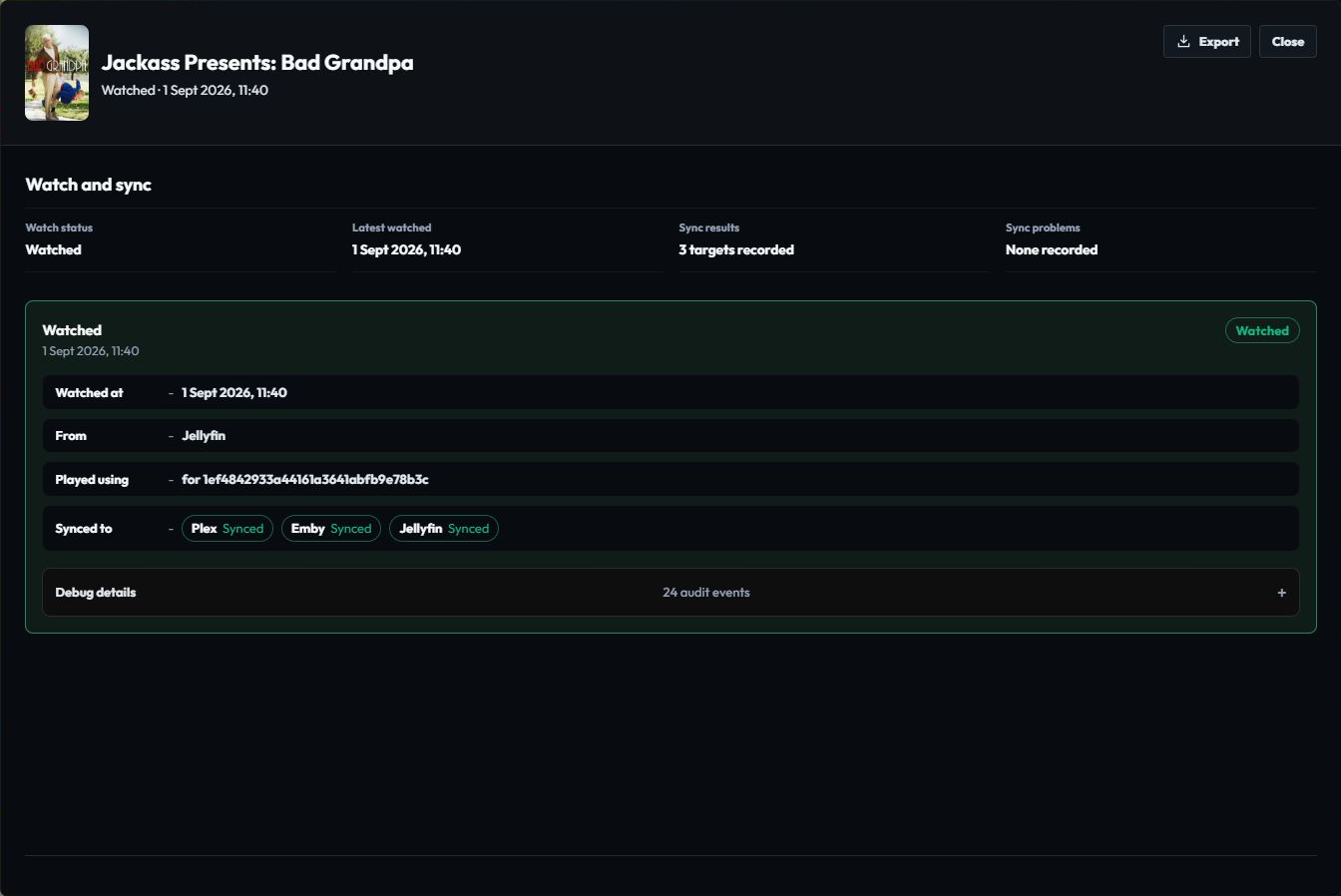
Choose Info to inspect the latest watched date, the current watch status, destination results, and available audit events. Use Export when you need to preserve the panel for an investigation. Info does not change the title.
Edit Images from Tools
Choose Edit Images when the provider identity is correct but the poster, logo, or background is wrong. Select an artwork type, choose a provider result or custom image, and save. The full workflow is documented in Edit Images.
Fix Match from Tools
Choose Fix Match when this record belongs to the wrong movie or TV series. Compare the candidate identity before confirming; the full movie and TV workflows are in Fix Match.
Delete
Choose Delete only when the local tracked title and its recorded history should be removed. It does not delete files from Plex, Emby, or Jellyfin. Review the confirmation scope and keep a verified backup first; for a wrong date or match, use the targeted corrections instead.
Merge
On a TV show, Merge folds one show’s episode records into another. Compare the series identity and preview, make a backup, and confirm only when the records are truly duplicates. Merge changes local record structure and is harder to reverse than a metadata refresh.
Movie and TV pages expose the actions appropriate to their media type. Merge is TV-only; Delete is available on both.
Create a backup first and read Backups and operations.
Related content and lightboxes
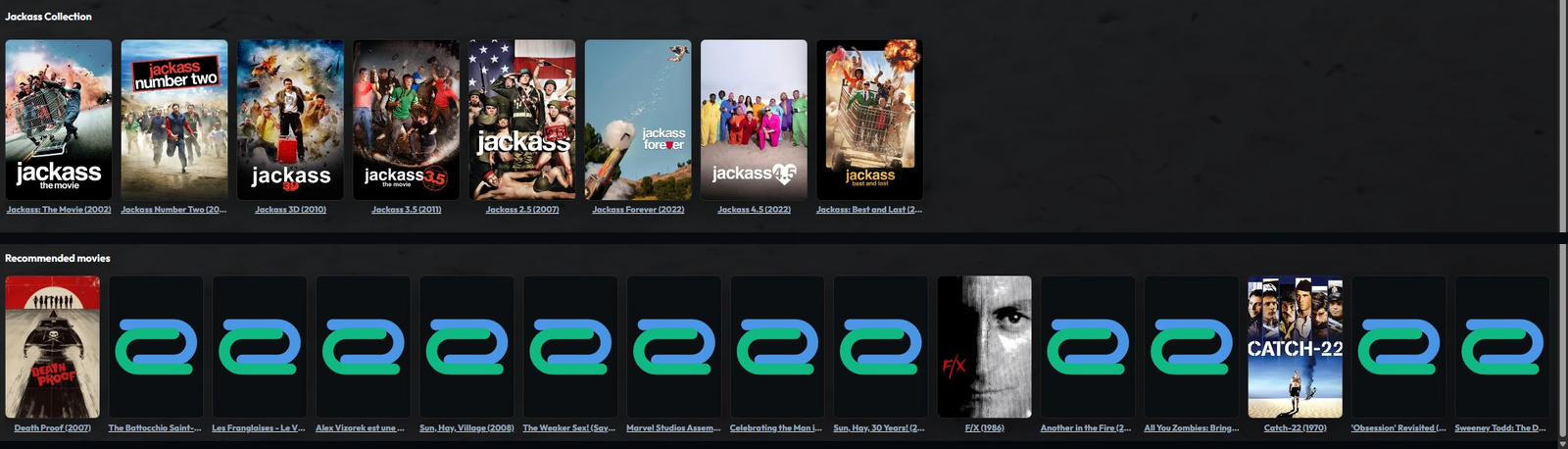
- Select the main poster or an image tile to open the image lightbox.
- Trailer and clip tiles play in the media lightbox.
- Cast members open person pages with biographies and filmographies.
- Recommendations and related titles open their own detail context.
- Provider links open the external service for the selected identity.
The website documentation images can be clicked to zoom and dragged while zoomed.
The app’s detail-page lightbox follows the app’s own controls and media-provider behavior.