
Movies is Plembfin’s tracked movie library. It is built from records Plembfin has recorded or imported, rather than being a raw file browser for every connected server.
Find a movie
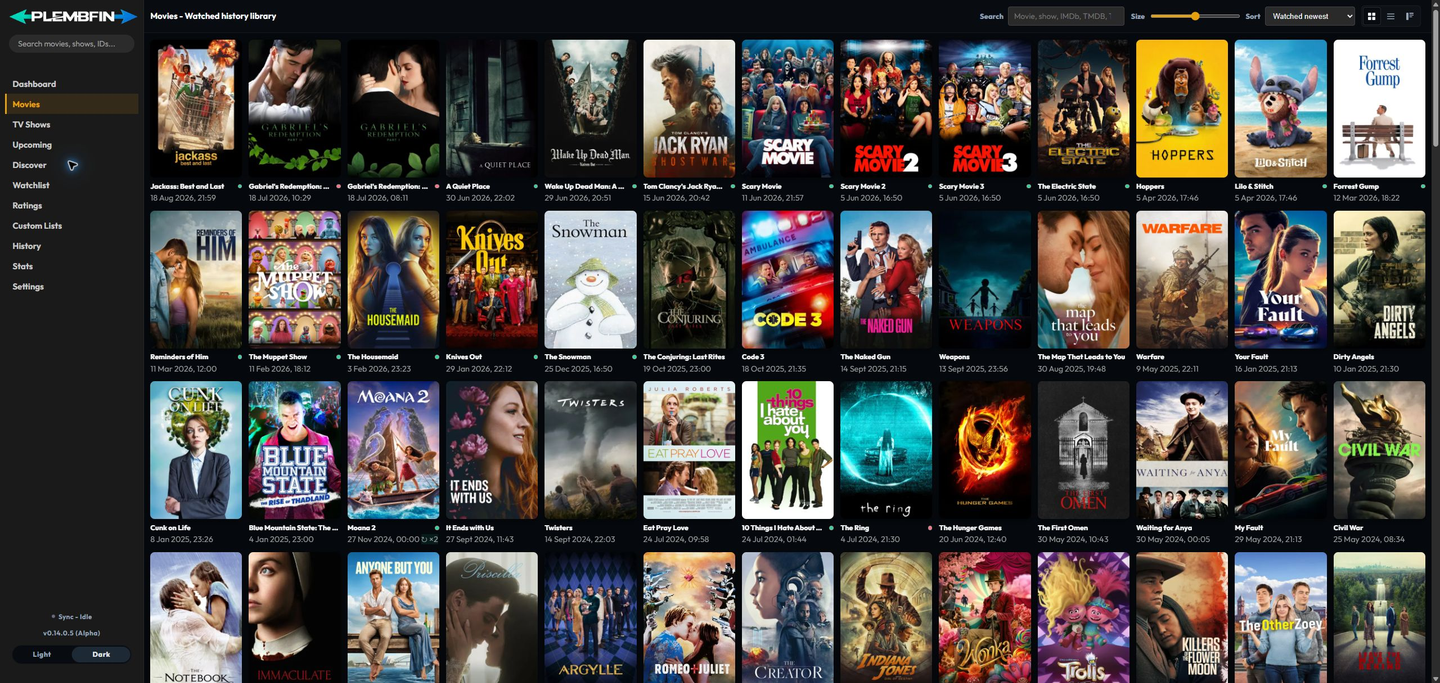
- Open Movies in the sidebar.
- Enter a title or another available library value in Search.
- Choose a sort order for title, watch date, or the available next-airing order.
- Use the A–Z control to jump through the loaded results.
- Adjust poster size or switch between poster grid, list view, and overview-card views.
- Select a card to open its movie media page.
Large libraries load progressively as you scroll. Rewatches remain in the title’s watch history rather than creating a second movie card.
Movie cards and quick actions
A movie card can show its poster, title, watch information, and the latest known sync or availability state. These indicators describe the local record and can change after a sync or metadata refresh.
On a desktop pointer, hover a poster card to reveal its three-dot button:
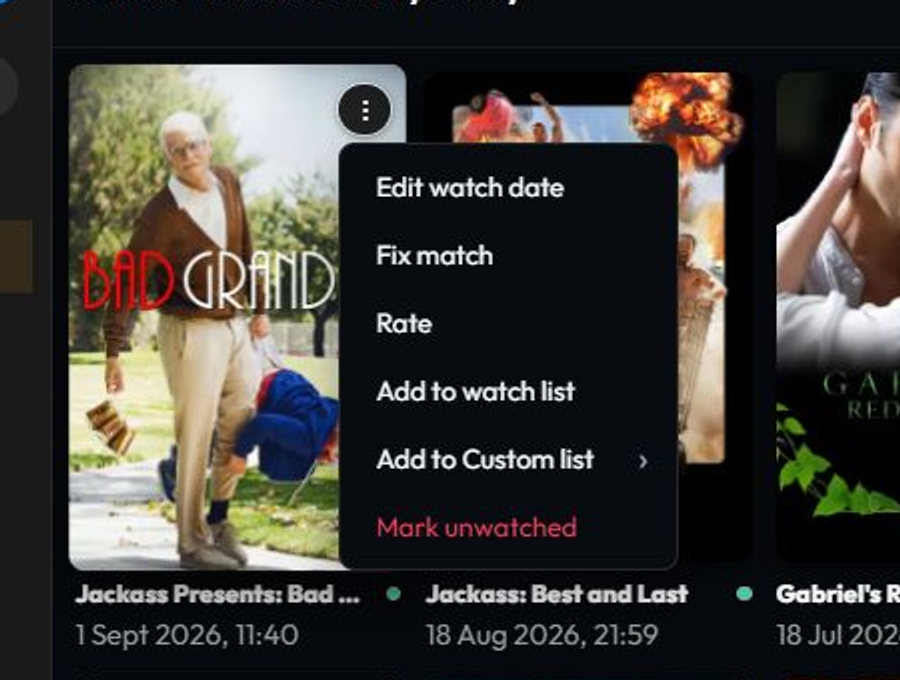
- Edit watch date inspects, changes, adds, or removes a recorded viewing date.
- Fix match corrects the provider identity attached to the movie.
- Rate sets a private local score without marking the movie watched or changing the provider rating.
- Add to watch list saves the movie for later.
- Add to Custom list opens the list chooser; the arrow indicates that more than one list can be selected.
- Mark unwatched clears the current watched state and propagates that correction.
The library refreshes in place after an action. Use the media page for artwork, trailers, galleries, the full watch history, and title-scoped sync actions.
Movie media page
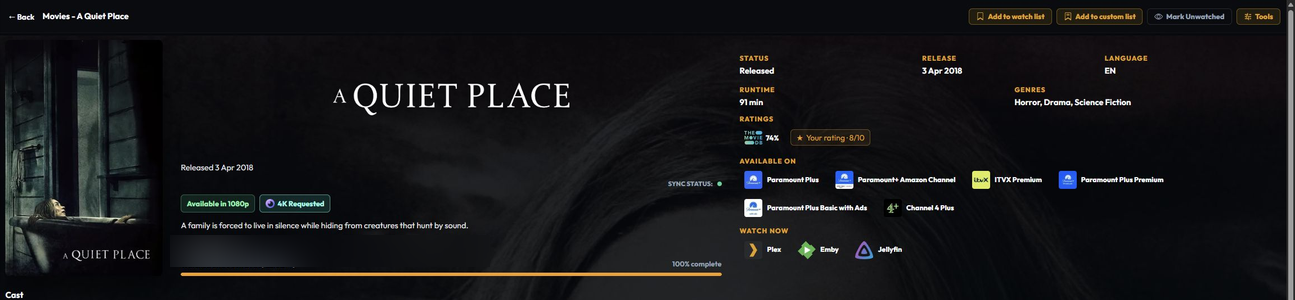
The child Movies media page guide is about one selected movie, including its header, watch status, actions, detail sections, and page-specific Appearance controls.
See Media details and actions for the shared explanation of watch dates, matching, artwork, and sync behavior.